How to Self-Host AI as Workspace with Docker - Step-by-Step Tutorial
A practical step-by-step tutorial for self-hosting AI as Workspace with Docker. Includes Docker Compose setup, workspace configuration, plugin installation, and common troubleshooting tips.

Self-Host AI as Workspace with Docker — A Step-by-Step Tutorial
I remember the first time I tried setting up a self-hosted AI chat client. Three hours, six failed docker-compose attempts, and a lot of swearing later, I had something that sort of worked. AI as Workspace was the complete opposite experience: I was up and running in under 3 minutes. Let me show you how I did it — including the mistake that cost me an extra 10 minutes so you don't make it.
🚀 Want to deploy AI as Workspace yourself?
Docker Compose configs, system requirements, and installation guides — all on one page.
View AI as Workspace Tool Page →Prerequisites (What You'll Need)
- Docker + Docker Compose installed (I used Docker 24 on Ubuntu 24.04, but any recent version works)
- ~1GB RAM available (idle is ~120MB, but with a loaded model it can spike)
- An API key from OpenAI, Anthropic, Google, or any OpenAI-compatible provider
- ~5 minutes of your time — I promise it won't take longer
Step 1: Pull the Docker Image
I like to pull the image first so I can see the download progress and verify everything's fine before running:
docker pull krytro/aiaw:latestThis took about 30 seconds on my connection — the image is only ~80MB compressed, which is refreshingly small compared to other AI tools (I'm looking at you, ComfyUI's 8GB).
Step 2: Run the Container
Here's where I made my mistake. The first time, I ran it without mounting a volume, thinking "it's just a chat app, what data could there be?" Turns out — everything. Your workspaces, plugin configs, conversation history, Artifact content — all of that lives in /data inside the container. Without a volume mount, you lose it all when the container restarts. Don't be me.
docker run -d \
  --name aiaw \
  -p 8080:8080 \
  -v ./aiaw-data:/data \
  krytro/aiaw:latest
After running this, check the logs to confirm it started:
docker logs aiaw --tail 20If you see something like "Server listening on http://0.0.0.0:8080", you're golden. If not, give it another 10 seconds — the first startup takes slightly longer as it initializes the database.
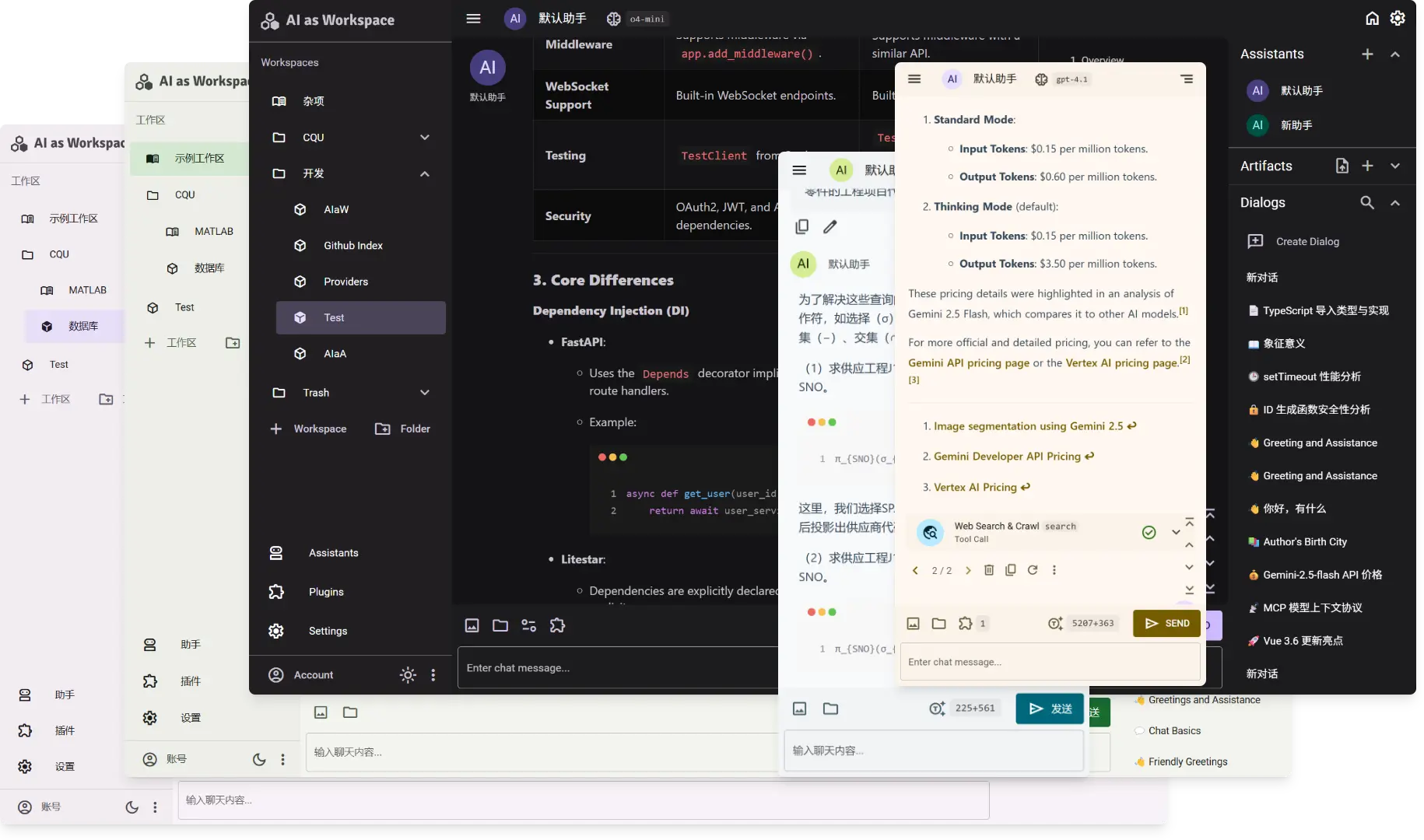
Step 3: Open the App and Configure Your First Workspace
Open your browser to http://localhost:8080. You'll be greeted by a clean setup screen asking for your API key and preferences. Here's what I did:
- Add your API key — I use OpenAI's key format (sk-...), but it accepts Anthropic and Google keys too. The MCP integration even lets you use local models through Ollama.
- Create your first workspace — I called mine "General" and set GPT-4o as the model. The workspace naming is important: you'll thank yourself later when you have 5 workspaces.
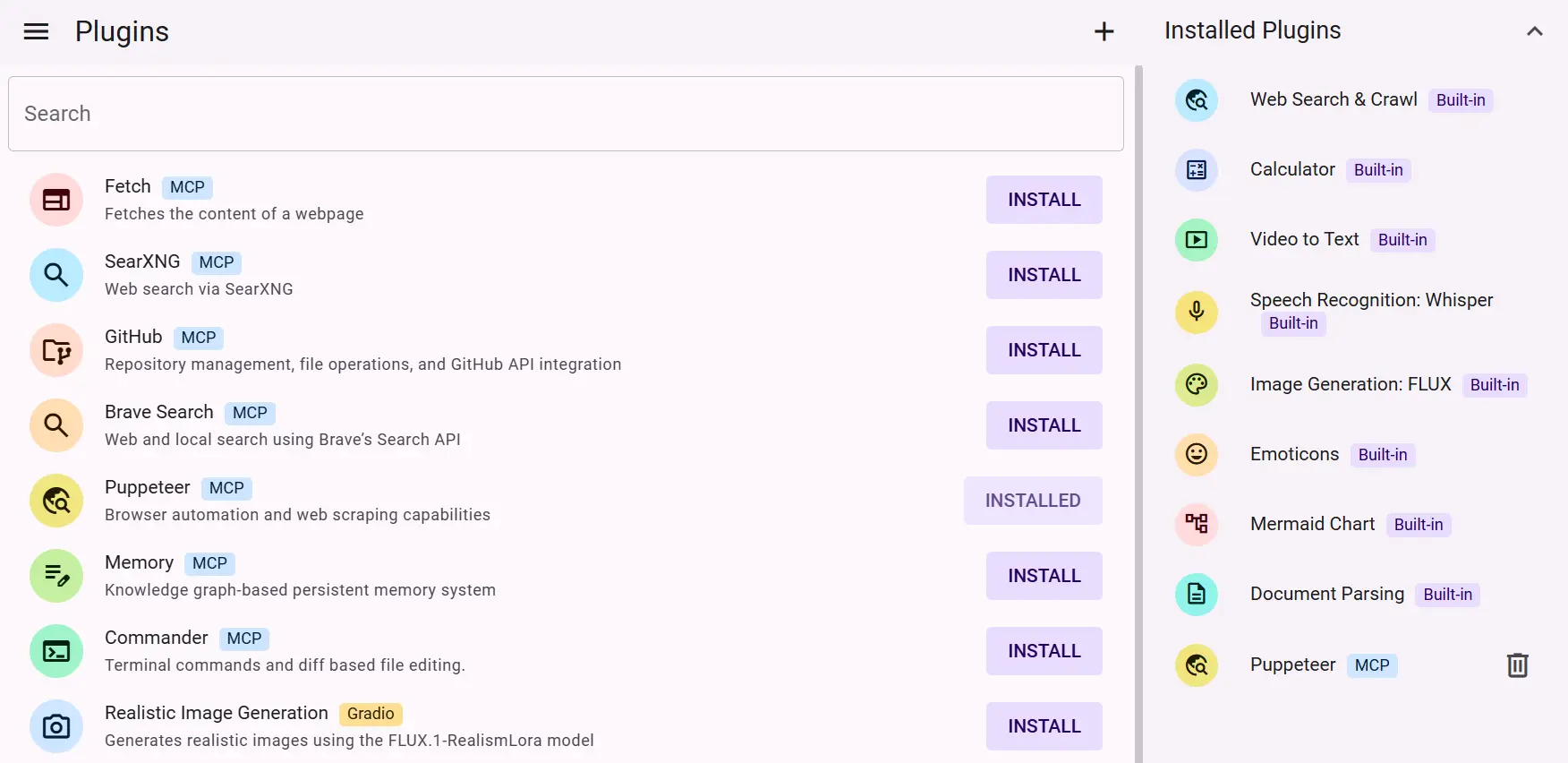
- Browse the plugin marketplace — Click the puzzle icon in the sidebar. I installed the "Web Search" plugin (gives the AI browsing ability) and the "Code Interpreter" plugin. Both installed in under 5 seconds.
Step 4: Quick Test — Ask It Something Real
Don't waste time on "hello world." Ask it something concrete. I tested with: "Create a comparison table of the top 5 open-source vector databases in 2026, including stars, license, and Docker image size."
The response came back formatted as a markdown table in the chat, plus a persistent artifact I could reference later. The artifact feature is something I didn't appreciate until I used it — now I can't live without it.
Step 5 (Optional): Docker Compose for Persistence
If you want a proper setup that survives reboots and is easier to manage, here's the docker-compose.yml I use:
version: '3.8'
services:
  ai-as-workspace:
    image: krytro/aiaw:latest
    restart: unless-stopped
    ports:
      - "8080:8080"
    volumes:
      - ./data/ai-as-workspace:/data
Save this as docker-compose.yml and run docker compose up -d. The restart: unless-stopped means it auto-starts after a server reboot — which is great if you're running this on a home server or VPS.
Common Pitfalls (And How I Fixed Them)
| Problem | What Happened | Fix |
|---|---|---|
| Port 8080 already in use | Another service was using 8080 | Use -p 9090:8080 instead |
| API key not working | I copied the wrong key format | Check the model provider's dashboard — each provider uses a different key prefix |
| Workspace data lost after update | Forgot to mount the volume | Always use -v ./aiaw-data:/data — my mistake from Step 2 |
Final Thoughts
Self-hosting AI as Workspace was genuinely one of the smoothest Docker experiences I've had with an AI tool. The image is tiny, the setup is straightforward, and the multi-workspace concept actually delivers on its promise. If you've been putting off moving away from ChatGPT's single-feed interface, this is your weekend project — and it'll take you less time than a coffee break.
🚀 Explore AI as Workspace on Run This Ai
Docker Compose configs, system requirements, installation guides, and more — all in one place.
View AI as Workspace Tool Page →