Paperless-ai Docker Setup: Get AI-Powered Document Tagging in 10 Minutes
Step-by-step tutorial to set up Paperless-ai with Docker, connect it to Paperless-ngx, and automate document classification with AI.

Setting Up Paperless-ai with Docker in Under 10 Minutes
I remember staring at the Paperless-ai README thinking, "This looks simple enough." Thirty minutes later I was fighting environment variables and cursing at my terminal. Turns out, three small gotchas were all that stood between me and a working setup. Here's how to skip those and get it running in one go.
What You'll Need
- A running Paperless-ngx instance (you probably already have this)
- Docker and docker-compose installed
- An AI API key (OpenAI, or a local Ollama endpoint)
- About 10 minutes
Step 1: Docker Setup — The Right Way
First, pull the image. The nightly tag is actually more stable than latest right now — I learned this the hard way after my latest container kept restarting (it was a version mismatch with my Paperless-ngx instance).
docker pull clusterzx/paperless-ai:nightlyNow create a simple docker-compose.yml. Here's what worked for me:
version: '3'
services:
  paperless-ai:
    image: clusterzx/paperless-ai:nightly
    container_name: paperless-ai
    restart: unless-stopped
    ports:
      - "8080:8080"
    environment:
      - PAPERLESS_AI_OPENAI_API_KEY=your-api-key-here
      - PAPERLESS_AI_PAPERLESS_URL=http://your-paperless:8000
      - PAPERLESS_AI_PAPERLESS_API_TOKEN=your-paperless-token
    volumes:
      - ./paperless-ai-data:/app/data
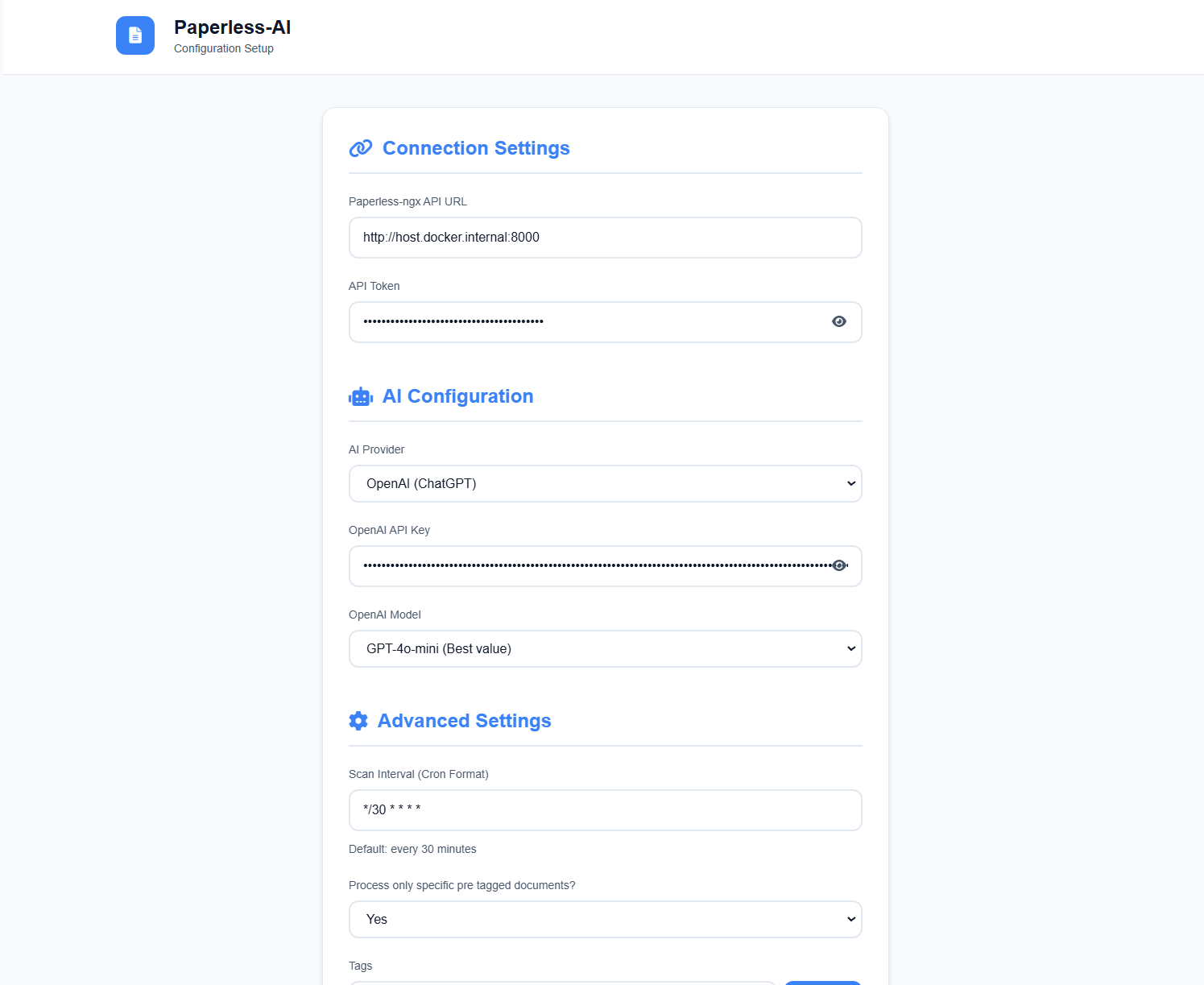
Gotcha #1: If you're using Ollama, set PAPERLESS_AI_OPENAI_API_KEY to ollama and add PAPERLESS_AI_OPENAI_BASE_URL=http://host.docker.internal:11434/v1. I wasted 20 minutes on this.
Step 2: Generate a Paperless-ngx API Token
In your Paperless-ngx interface, go to Settings → API Access → Create Token. Copy it. This is the PAPERLESS_AI_PAPERLESS_API_TOKEN value. If you see "401 Unauthorized" in the logs later, this is why — double-check the token.
Step 3: Start It and Watch
docker-compose up -d
docker logs -f paperless-ai
If everything is connected, you'll see something like:
[INFO] Connected to Paperless-ngx at http://your-paperless:8000
[INFO] AI backend ready (OpenAI-compatible)
[INFO] Watching for new documents...
If you see connection refused, your Paperless-ngx and Paperless-ai containers might be on different Docker networks. Add network_mode: "bridge" or put them in the same compose file.
Step 4: Verify It Works
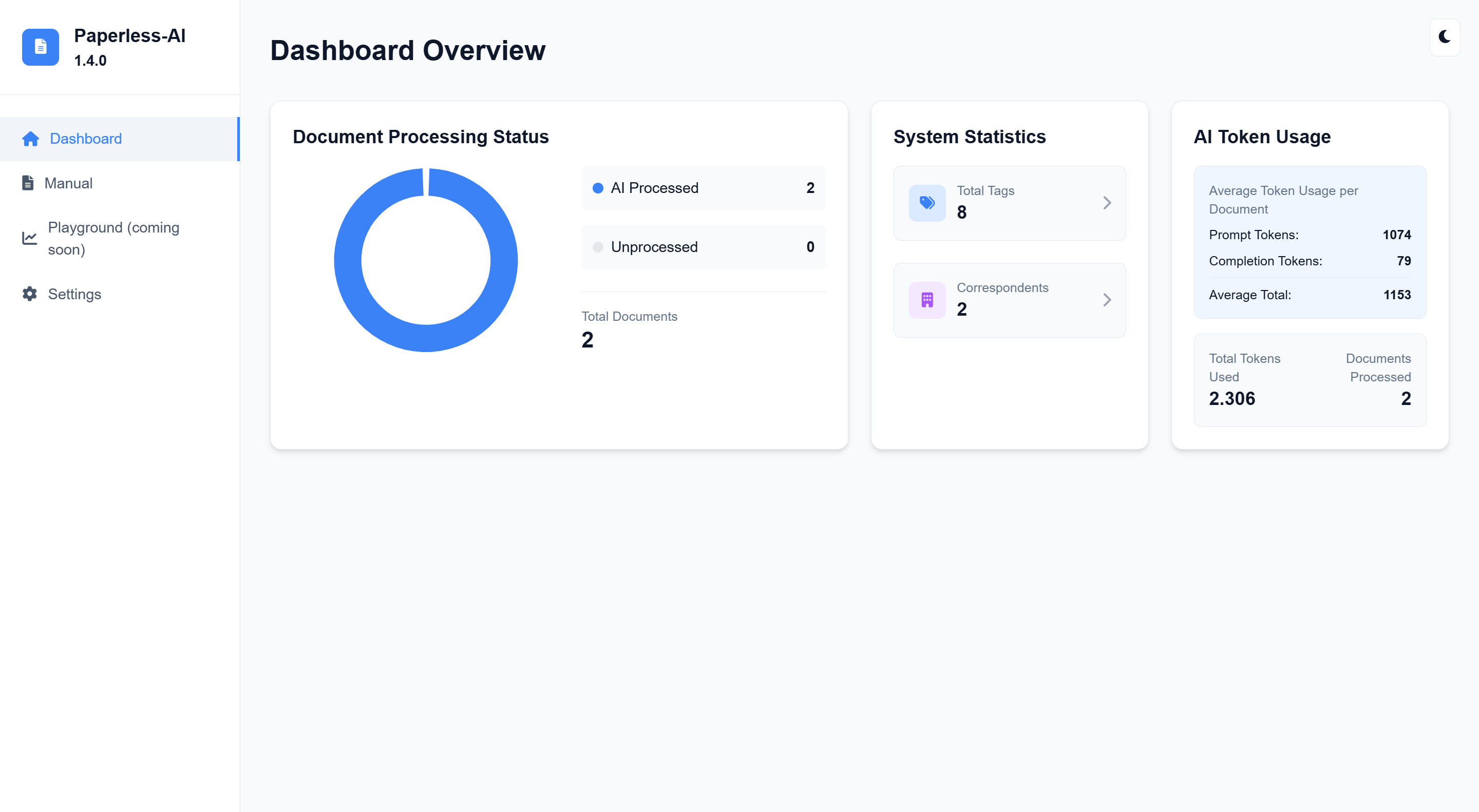
Upload a test document to Paperless-ngx. Within 30 seconds, Paperless-ai should pick it up, analyze it, and you'll see tags appearing automatically. Check the Paperless-ai dashboard at http://localhost:8080:
Step 5: Tweak the Settings
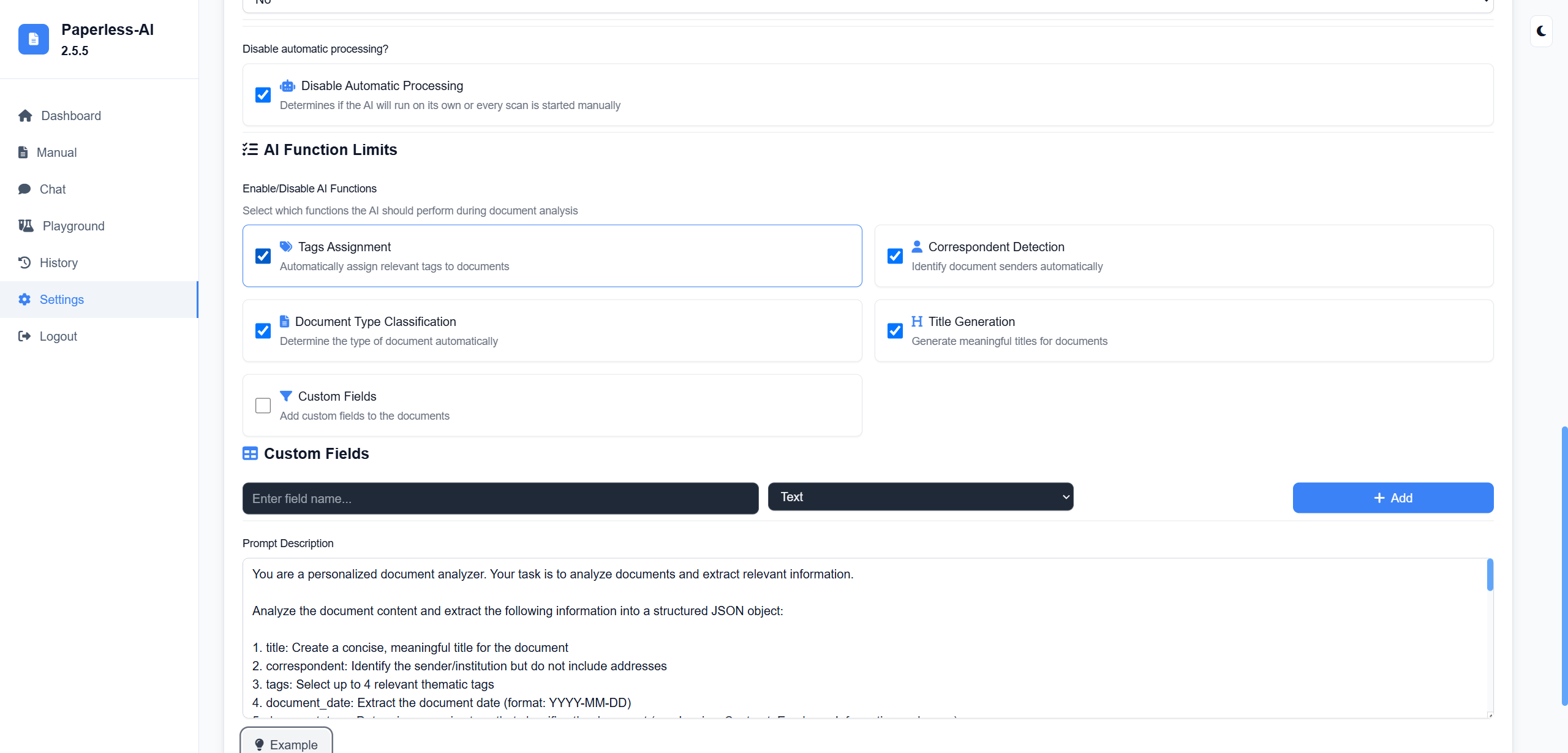
Open the settings page and configure:
- Tag format: I prefer lowercase, hyphen-separated tags (e.g., "utility-bill")
- Correspondent detection: Enable this — it'll automatically recognize who sent the document
- Document type: I map "invoice," "receipt," "contract," "letter"
If Something Goes Wrong
"No documents analyzed": Check that your Paperless-ngx API token has read/write permissions. Also confirm the PAPERLESS_AI_PAPERLESS_URL is reachable from within the Paperless-ai container (use the Docker service name, not localhost).
"AI returned empty tags": Some local LLMs (especially smaller ones) struggle with structured output. Try switching to a larger model or using gpt-4o-mini via OpenAI. Deepseek-r1 14B works well if you're running local.
Slow initial analysis: If you have 5000 backlogged documents, it'll take hours. That's normal. Each document takes ~3-5 seconds with a fast API. Let it run overnight.
Final Thoughts
Once it's running, Paperless-ai is genuinely set-and-forget. I installed it three months ago, and I haven't manually tagged a single document since. The AI isn't perfect — sometimes it misclassifies a utility bill as a "letter" — but it's right 95% of the time, and fixing one tag out of twenty takes seconds compared to doing all twenty from scratch.
🚀 Explore Paperless-ai on Run This Ai
Docker Compose configs, system requirements, installation guides, and more — all in one place.
View Paperless-ai Tool Page →