How to Set Up and Run Pixelle Video: Docker Tutorial with Pro Tips
Step-by-step guide to running Pixelle Video with Docker. Learn about setup, first video generation, batch processing, and the gotchas I discovered during a week of testing.
How to Set Up Pixelle Video in 15 Minutes — Docker, First Video, and the Gotchas I Hit
You've heard about Pixelle Video — the open-source AI engine that turns scripts into short videos automatically. Now you want to run it. Let me save you the hour I lost figuring this out.
Time estimate: 15 minutes if you already have Docker. Add 8-10 minutes for the first run (model downloads). Grab a coffee.
🎬 Want to deploy Pixelle Video yourself?
Docker configs, system requirements, and installation guides — all on one page.
View Pixelle Video Tool Page →Prerequisites (What You Actually Need)
| Requirement | Minimum | Recommended |
|---|---|---|
| RAM | 4 GB | 8 GB |
| CPU | 2 cores | 4 cores |
| Disk | 8 GB | 20 GB |
| Docker | 20.10+ | |
| GPU | Optional (ComfyUI integration) | |
No GPU needed for basic operation — Pixelle runs on CPU just fine. GPU helps if you're using ComfyUI for custom image generation within the pipeline.
Step 1: Pull and Run (The Right Way)
# Create data directory FIRST (avoid permission issues)
mkdir -p ./data/pixelle-video
chmod 777 ./data/pixelle-video

# Pull the image
docker pull samge/pixelle-video:latest

# Run it
docker run -d \
  --name pixelle-video \
  -p 8080:8080 \
  -v $(pwd)/data/pixelle-video:/data \
  samge/pixelle-video:latest
⚠️ The gotcha: The container's internal port is 8080. If you change the host port (e.g., -p 3000:8080), make sure you update any config that references the port. I didn't — spent 10 minutes wondering why the health check failed.
Step 2: First Launch — Don't Panic
Run docker logs -f pixelle-video to watch the startup. Here's what you'll see:
# First 30 seconds — starting up
[INFO] Loading configuration...
[INFO] Checking model cache...

# Next 8-10 minutes — downloading models (THIS IS NORMAL)
[INFO] Downloading TTS model: 45%...
[INFO] Downloading TTS model: 100%

# When ready — this message
[INFO] Starting server on 0.0.0.0:8080
[INFO] Pixelle Video is ready!
If you see "Pixelle Video is ready!" — congratulations, it's running. If you see an error about /data permissions, stop the container, fix the directory permissions, and start again.
Step 3: Generate Your First Video
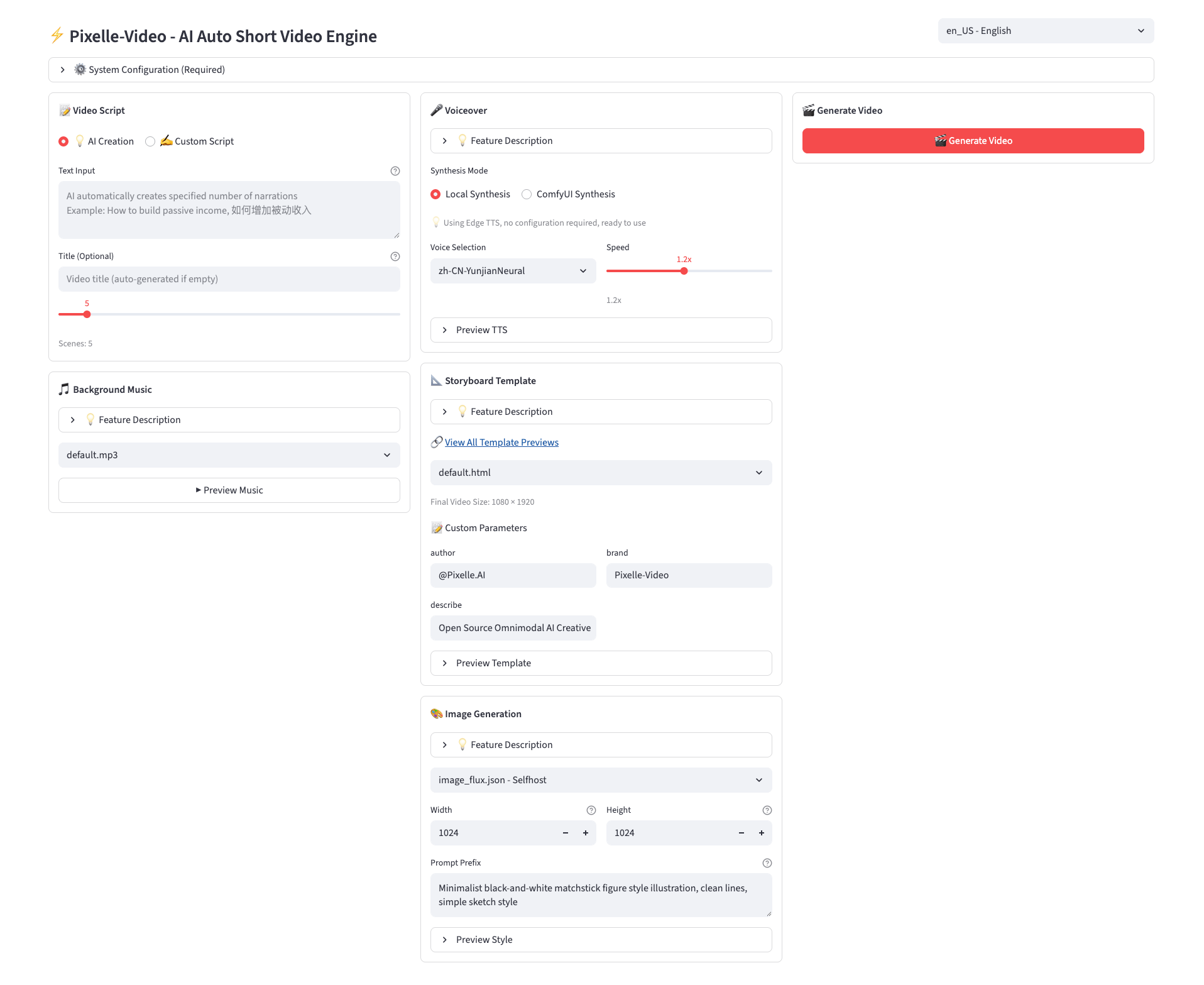
Open http://localhost:8080 in your browser. You'll see the Pixelle Video web UI.

Try this flow for your first video:
- Select a template from the gallery (start with the default "Minimal" template — it works with minimal tuning)
- Paste a script — I used a 60-word product description. Don't go over 200 words for your first test.
- Choose a voice — the default TTS voice is fine. Don't spend time on voice selection yet.
- Click Generate — and wait about 30-60 seconds.
If you see an empty video: check the container logs. 90% of the time it's a missing model file or a template config issue. Try the "Minimal" template — it's the most reliable.
If the UI doesn't load: check that port 8080 isn't already in use. lsof -i :8080 will show you what's listening.
Batch Processing: Where It Gets Interesting
Here's what I didn't expect — you can queue up multiple scripts and walk away. On my 8GB / 4-core machine, a batch of 10 scripts (each ~100 words) took about 12 minutes to process. That's about 72 seconds per video. Not bad for automated production.
Resource usage during batch processing: about 3.2 GB RAM, CPU pegged at 60-70% on 4 cores. No noticeable GPU usage unless ComfyUI is active.
Pro Tips From a Week of Testing
- Short scripts win. Videos above 60 seconds start showing artifacts in the automated scene transitions. Keep it under 45 seconds for best quality.
- Custom templates are worth the effort. The defaults are OK, but spending 30 minutes designing a template that matches your brand style pays off in every subsequent video.
- Background music is manual. Pixelle doesn't auto-add music (yet). I used a separate step with ffmpeg to overlay audio —
ffmpeg -i video.mp4 -i bgm.mp3 -c:v copy -c:a aac -shortest output.mp4
Final Verdict
Pixelle Video isn't going to replace professional video editing. But if you need volume — 20, 50, 100 shorts a week — it's the most practical open-source option I've tested. The setup is straightforward (once you know about the data directory issue), the output is genuinely usable for social media, and the ComfyUI integration means you can extend it way beyond what the defaults offer.
Would I recommend it? For content creators who value speed over polish — yes, absolutely. For brand campaigns where every frame matters — no, stick with a human editor. Know what you're signing up for and you'll love it.
🎬 Explore Pixelle Video on Run This Ai
Docker Compose configs, system requirements, installation guides, and more — all in one place.
View Pixelle Video Tool Page →