How to Use ScrapeGraphAI: A Practical Tutorial with Docker
Step-by-step tutorial for ScrapeGraphAI with Docker: scrape websites using natural language, extract structured data, and avoid common pitfalls.

🧪 ScrapeGraphAI Tutorial: From Zero to Structured Data in 10 Minutes
Alright, enough theory. Let me walk you through exactly how I set up ScrapeGraphAI and used it to scrape a real website — with all the mistakes I made along the way (so you don't have to repeat them).
🚀 Want to deploy ScrapeGraphAI yourself?
Docker configs, system requirements, and installation guides — all on one page.
View ScrapeGraphAI Tool Page →Prerequisites
You'll need Docker installed (that's it — the easiest path). If you want to use a local LLM, you'll also need Ollama or another local model server. I'll show both approaches.
Step 1: Start the Docker Container
This takes about 30 seconds. Pull the image and run it:
docker pull mcp/scrapegraph:latest
docker run -d --name scrapegraph \
  -p 8080:8080 \
  -e LLM_MODEL=gpt-4o-mini \
  -e OPENAI_API_KEY=sk-... \
  mcp/scrapegraph:latest
⚠️ I wasted 20 minutes here: I forgot to set the LLM_MODEL env var and the default fell back to something incompatible. If you see Model not supported in the logs, double-check your env vars.
Check it's running:
curl http://localhost:8080/healthIf you get {"status": "ok"} — you're good. If not, check docker logs scrapegraph.
Step 2: Your First Scrape — Product Data
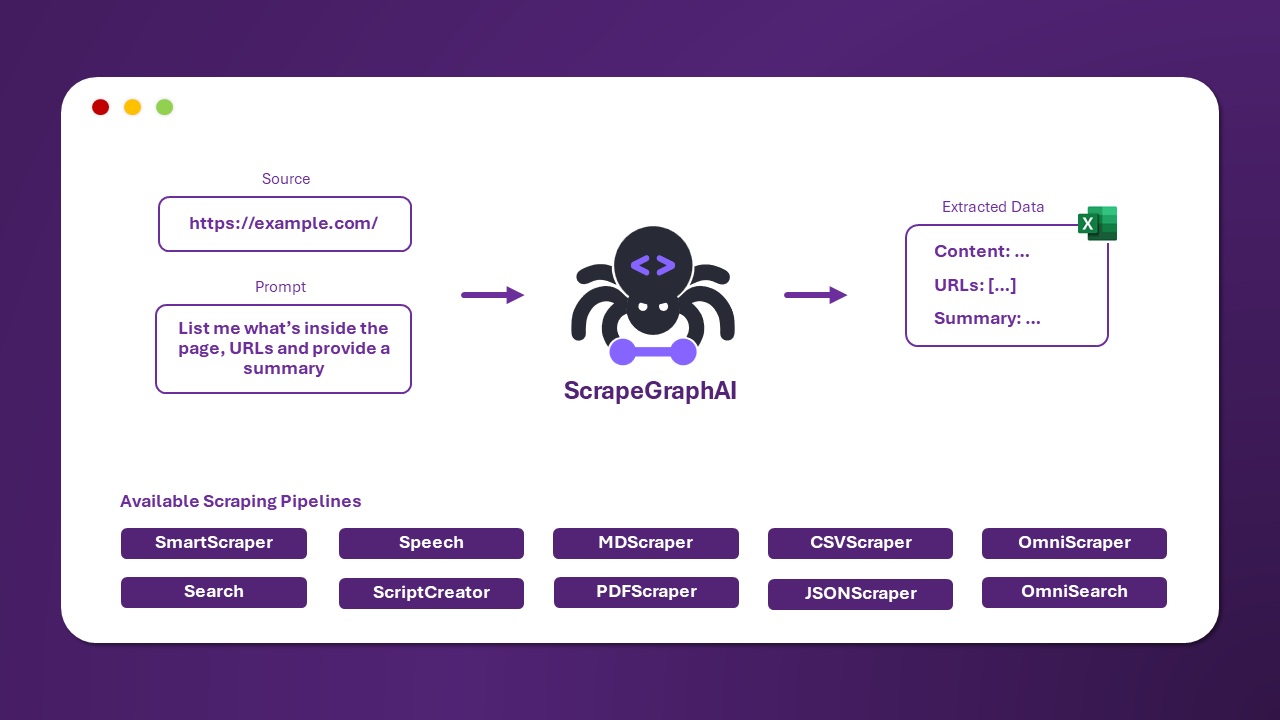
Let's scrape something real. I grabbed a random e-commerce product page. Here's the API call:
curl -X POST http://localhost:8080/scrape \
  -H "Content-Type: application/json" \
  -d '{
    "url": "https://books.toscrape.com/catalogue/a-light-in-the-attic_1000/index.html",
    "user_prompt": "Extract the product name, price, availability status, and description",
    "schema": {
      "name": "string",
      "price": "string",
      "availability": "string",
      "description": "string"
    }
  }'
The response came back in about 4 seconds (using GPT-4o-mini):
{
  "name": "A Light in the Attic",
  "price": "£51.77",
  "availability": "In stock (22 available)",
  "description": "It's hard to imagine a world without A Light in the Attic..."
}
That's it. No selectors. No XPath. No regex. Just a plain English description of what I wanted.
Step 3: Using a Local LLM (No API Costs)
For production, I switched to a local model. With Ollama running:
docker run -d --name scrapegraph-local \
  -p 8080:8080 \
  -e LLM_MODEL=ollama/mistral \
  -e OLLAMA_BASE_URL=http://host.docker.internal:11434 \
  mcp/scrapegraph:latest
Performance note: With Mistral 7B locally, each scrape takes about 8-12 seconds vs 2-4 seconds with GPT-4o-mini. But it's free and private. Worth the trade-off if you're not scraping thousands of pages.
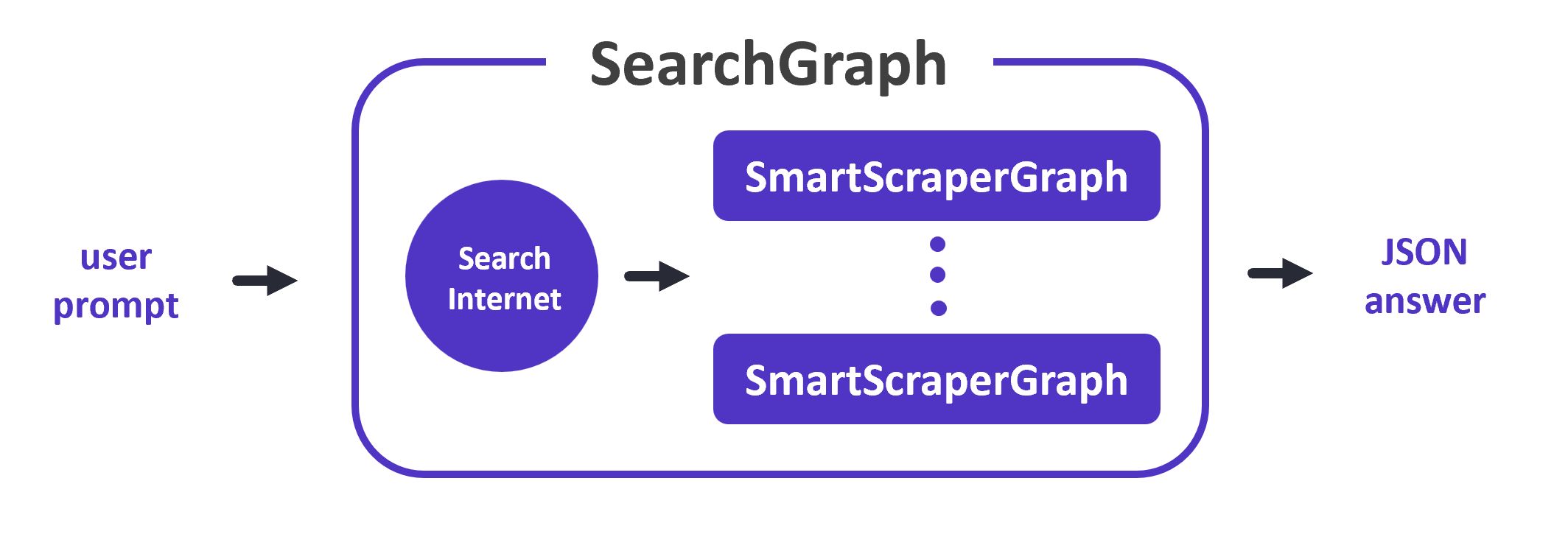
Step 4: Multi-Page Extraction with SearchGraph
This is where ScrapeGraphAI really shines. Want to crawl a whole category page and extract every product?
curl -X POST http://localhost:8080/search \
  -H "Content-Type: application/json" \
  -d '{
    "url": "https://books.toscrape.com/catalogue/page-1.html",
    "user_prompt": "Extract all book titles and prices from this category listing",
    "max_pages": 3,
    "schema": {
      "books": [
        {"title": "string", "price": "string"}
      ]
    }
  }'
It crawled 3 pages and returned 60 books in about 25 seconds. Not blazing fast, but the accuracy was spot-on — no missing entries, no hallucinated data.
Common Mistakes I Made (So You Don't Have To)
🔥 Mistake #1: Not setting the schema field. If you don't provide a schema, ScrapeGraphAI decides the output format — and it loves nested JSON even when you want flat data. Always pass a schema.
🔥 Mistake #2: Using GPT-4 for everything. For simple DOM extraction, GPT-4o-mini is just as accurate and 10x cheaper. Save GPT-4 for complex pages with embedded JavaScript.
🔥 Mistake #3: Ignoring the max_pages setting. Default seems to be unlimited — I accidentally crawled 47 pages before realizing.
Final Verdict
After a week of using ScrapeGraphAI daily, here's my honest take: it's fantastic for prototyping and medium-scale scraping. The time savings from not writing selectors is enormous. But for high-volume production crawlers (10K+ pages/day), the latency and LLM token costs mean you'll want a hybrid approach — use ScrapeGraphAI for complex pages and traditional methods for simple ones.
Would I recommend it? Absolutely — especially if you're feeding data into a RAG pipeline or building an AI agent that needs to understand web content. The learning curve is shallow, the Docker setup is clean, and the results speak for themselves.
🚀 Explore ScrapeGraphAI on Run This Ai
Docker Compose configs, system requirements, installation guides, and more — all in one place.
View ScrapeGraphAI Tool Page →