Scriberr Tutorial — Set Up Offline AI Transcription in 10 Minutes
Step-by-step tutorial to deploy Scriberr with Docker, upload audio, transcribe with speaker detection, chat with transcripts using local LLMs, and automate with folder watcher.

📖 How to Set Up Scriberr: From Zero to First Transcription in 10 Minutes
I'll walk you through getting Scriberr running with Docker, uploading your first audio file, and using the AI chat feature to summarize a meeting. This should take about 10 minutes, maybe 15 if it's your first time running a Docker container.
🚀 Want to deploy Scriberr yourself?
Docker configs, system requirements, and installation guides — all on one page.
View Scriberr Tool Page →Prerequisites
- Docker installed (no GPU required, but it helps)
- At least 4GB free RAM — models need memory
- About 2GB free disk for the model download on first run
- An audio file to transcribe (MP3, WAV, M4A, or video formats work)
Step 1: Start Scriberr with Docker
I chose port 8080 here so it doesn't conflict with anything else running on my server. Pick whatever works for you.
mkdir -p ~/scriberr/data
cd ~/scriberr

docker run -d \
  --name scriberr \
  -p 8080:8080 \
  -v $(pwd)/data:/app/data \
  -v $(pwd)/whisperx-env:/app/whisperx-env \
  --restart unless-stopped \
  testype/scriberr:latest
If you see a container ID printed — congratulations, it's running. Check with docker logs scriberr — you should see it starting up and downloading the model. This takes about 1-2 minutes on the first run. Grab a coffee.
/app/whisperx-env volume caches it, so subsequent starts are instant. If you see it restarting in a loop, wait 2-3 minutes — it's downloading models.
Step 2: Open the Web UI
Open your browser and navigate to http://localhost:8080. You should see the Scriberr homepage:
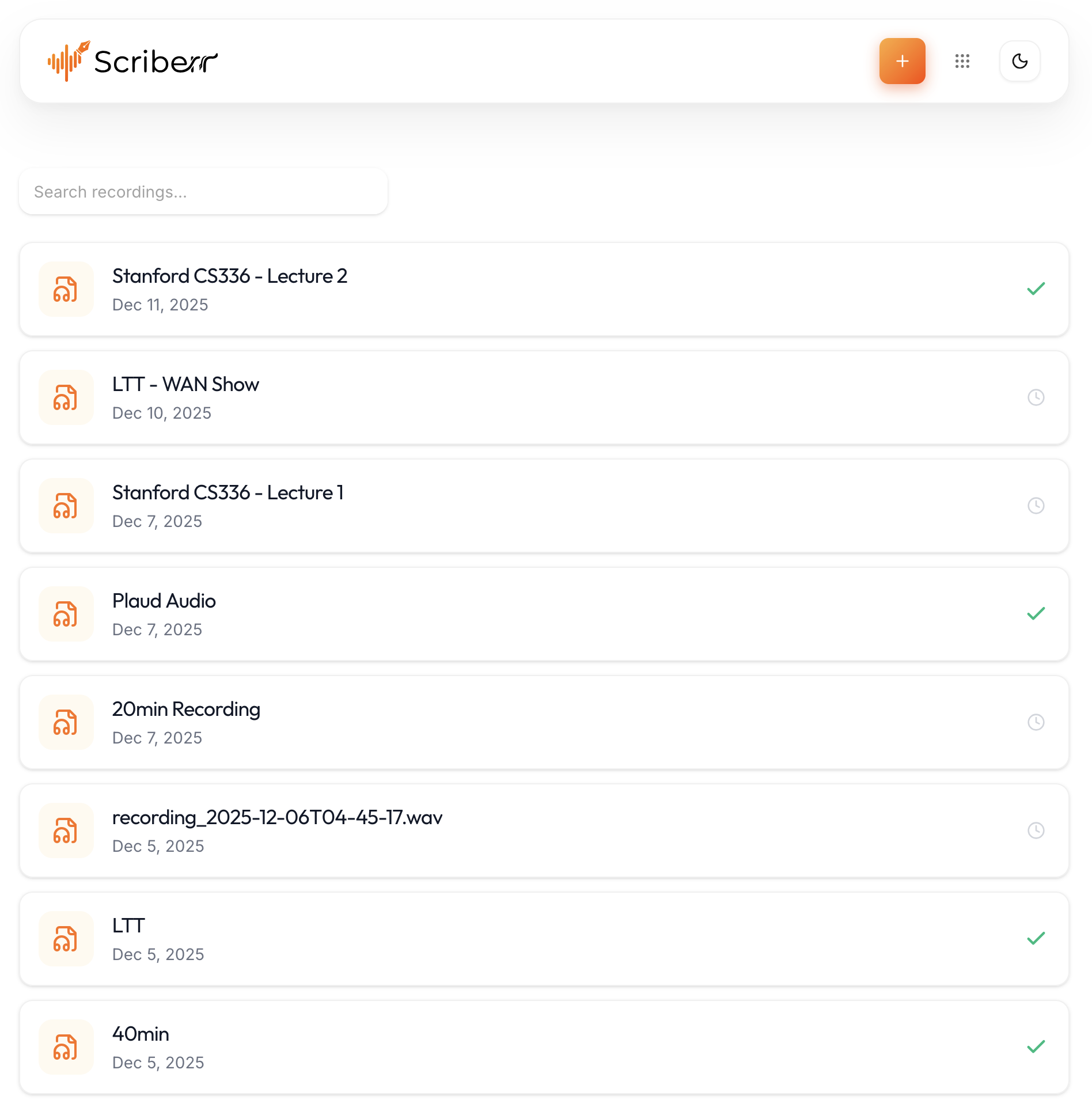
Create an account (local only — no email verification needed, it's completely offline). Then you're in.
Step 3: Upload and Transcribe
Click the "Upload" button or drag-and-drop an audio file. I'm using a 20-minute meeting recording (MP3, 32MB).
Scriberr processes it locally — you can watch the progress bar. On my machine (4 vCPU, 8GB RAM, no GPU) a 20-minute file took about 3 minutes with the Parakeet model. That's impressive for fully local processing.
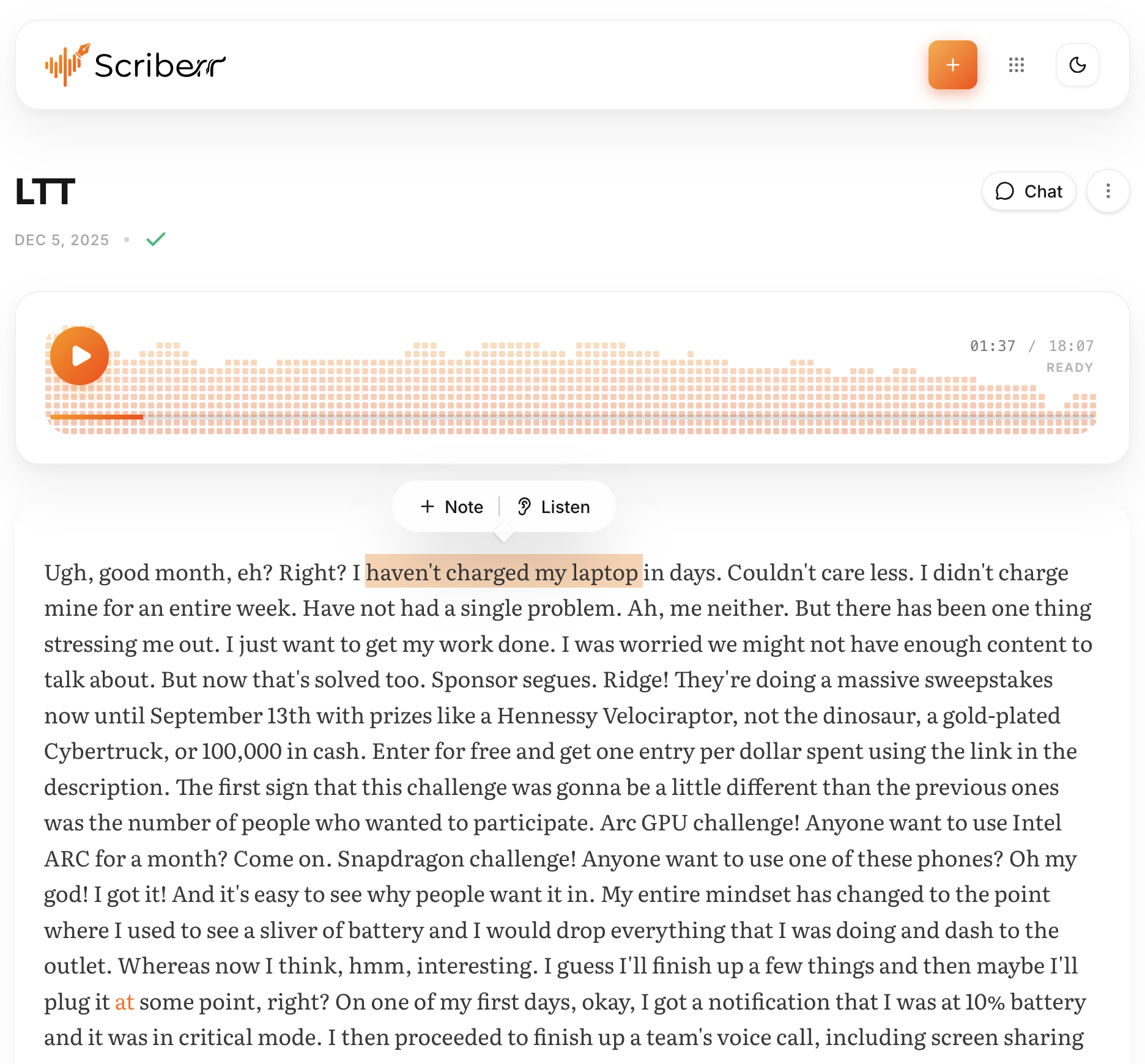
The transcript view shows word-level timing. You can click on any word and jump to that point in the audio. Speaker labels appear on the left — green for Speaker 1, blue for Speaker 2, etc.
Step 4: Chat With Your Transcript (The Best Part)
This is where Scriberr shines. Click the "Chat" icon next to your transcript. You'll need to configure an LLM backend first:
- Go to Settings → AI Provider
- Select Ollama (or OpenAI if you prefer cloud)
- If using Ollama, enter the URL:
http://host.docker.internal:11434 - Pick a model — I use
llama3.1:8b, works great for summarization
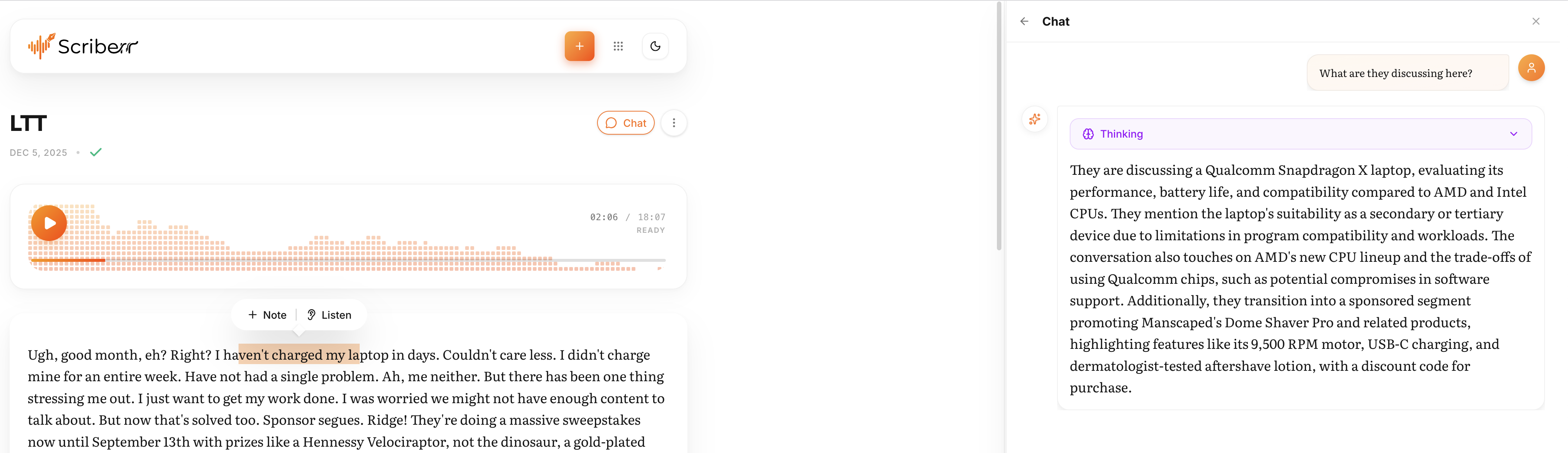
Now try these prompts:
- "Summarize this recording in 3 bullet points"
- "What were the key decisions made?"
- "Extract all action items with who they were assigned to"
- "Was there any discussion about the budget?"
The AI answers based on your transcript — it's like having a personal assistant who actually listened to the whole meeting and remembers everything.
Step 5: Automate With Folder Watcher (Optional)
Scriberr can monitor a folder and automatically transcribe any new file dropped into it. To set it up:
- Create a directory on your host:
mkdir -p ~/scriberr/watch - Mount it into the container: add
-v ~/scriberr/watch:/app/watchto your docker run command - In Scriberr settings, set the watch folder to
/app/watch - Drop an audio file into
~/scriberr/watch— it gets transcribed automatically
I pair this with Syncthing on my phone: I record a voice memo, Syncthing syncs it to the watch folder, and Scriberr transcribes it. Completely hands-free.
Troubleshooting
Wait 2-3 minutes — it's downloading models on first run. Check logs with
docker logs scriberr.
Transcription runs on CPU by default. For faster results, pass
--gpus all to your docker run command if you have an NVIDIA GPU. The Parakeet model is optimized for GPU.
Scriberr's diarization works best with clear audio and distinct speakers. For noisy environments, consider pre-processing with audio filtering tools like SoX before uploading.
What's Next?
Scriberr has a REST API too — you can integrate it with n8n, Home Assistant, or any system that can make HTTP requests. The API docs are at scriberr.app/api.
The project is currently in a maintenance pause as the creator was affected by layoffs, but the software works perfectly as-is. If you find it useful, consider supporting them on Ko-fi or contributing to the codebase.
🚀 Explore Scriberr on Run This Ai
Docker Compose configs, system requirements, installation guides, and more — all in one place.
View Scriberr Tool Page →