How to Generate Audiobooks from PDF and EPUB with Abogen
Step-by-step tutorial: deploy Abogen with Docker, upload a PDF or EPUB, pick a TTS voice, and generate a narrated audiobook with synchronized captions — no coding needed.
In this tutorial, you will convert a PDF (or EPUB / text file) into a narrated audiobook with synchronized captions using Abogen — a self-hosted AI audiobook generator. No coding skills are required; if you can run a Docker container, you can produce studio-quality narration in minutes.
🚀 Want to deploy Abogen yourself?
Docker configs, system requirements, and installation guides — all on one page.
View Abogen Tool Page →Step 1: Deploy Abogen with Docker
Create a directory and a docker-compose.yml with the Abogen image, then start the stack:
mkdir -p abogen/data && cd abogen
cat > docker-compose.yml << 'EOF'
services:
  abogen:
    image: averell/abogen:latest
    restart: unless-stopped
    ports:
      - 8080:8080
    volumes:
      - ./data:/data
EOF
docker compose up -d
Open http://localhost:8080 in your browser. On a server, point your domain at port 8080 (or use the Run This Ai template for a ready-made setup).
Step 2: Upload Your Document
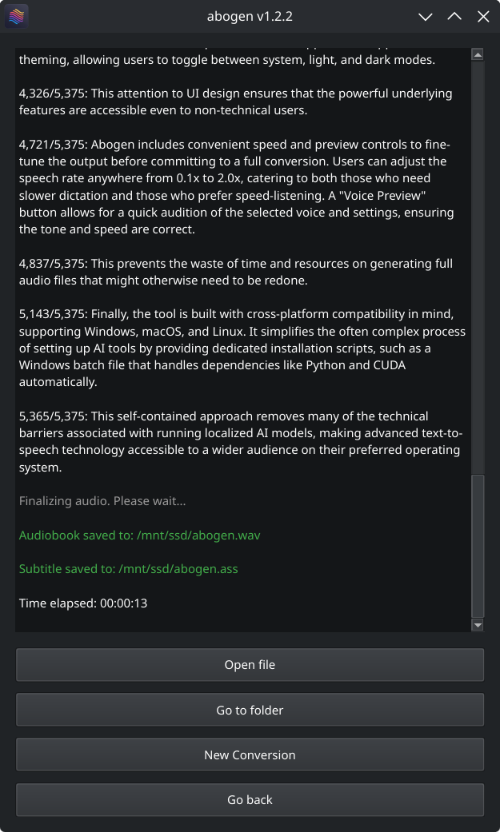
In the web UI, click New Conversion and upload your EPUB, PDF, or .txt file. Abogen extracts the text and automatically detects chapters for long documents — ideal for books and research papers.
Step 3: Pick a Voice and Engine
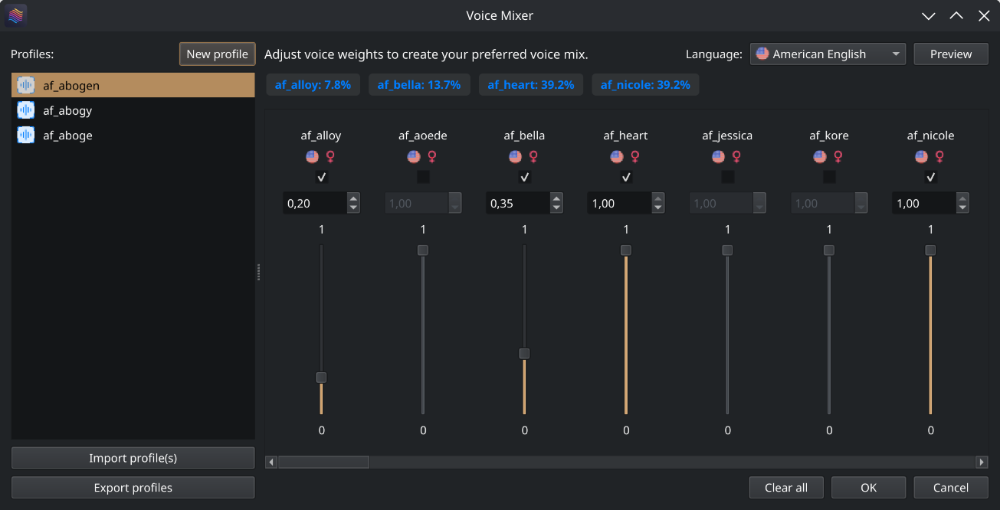
Choose one of the built-in TTS engines — Kokoro (fast and natural), Piper (lightweight), or Coqui (expressive). Adjust speaking rate and volume, then use the voice mixer to assign different voices to different chapters if you want variety.
Step 4: Generate and Follow Along
Submit the job — it appears in the queue with progress tracking. When it finishes, play the audiobook in the built-in player with synchronized word-level captions highlighted in real time, just like karaoke for your books. Export the audio file to take it with you anywhere.
💡 Pro tip: Long documents take time. Start with one chapter to test voices, then queue the full book once you are happy with the sound.
Troubleshooting
| Issue | Fix |
|---|---|
| Slow generation | Add more RAM/CPU, or switch to the lighter Piper engine |
| Scanned PDFs produce no text | Run OCR on the PDF first, then upload the text layer |
| Missing captions | Enable the subtitle overlay in the player settings |
That is it — your personal audiobook studio is live. Abogen keeps your library private, your wallet happy, and your commute productive.
🚀 Want to deploy Abogen yourself?
Docker configs, system requirements, and installation guides — all on one page.
View Abogen Tool Page →