CoAI Docker Setup Guide — Deploy a Multi-Model AI Gateway in 10 Minutes
Step-by-step tutorial for deploying CoAI with Docker Compose. From git clone to first AI conversation with GPT-4, Claude, and Gemini — including common pitfalls and fixes.

How I Deployed CoAI in 10 Minutes — Docker Compose Setup Guide
So you want to run CoAI yourself? Good call. I remember my first attempt at setting up an AI gateway — it involved three Docker containers, a reverse proxy config that took me an hour to debug, and plenty of colorful language. CoAI is nothing like that. Here's exactly how I got it running, including the mistakes I made so you don't have to.
🚀 Ready to deploy CoAI?
Full deployment guide, requirements, and more on the tool page.
View CoAI Tool Page →Prerequisites (What You'll Need)
- 🐳 Docker + Docker Compose installed (v2.20+ works great)
- 🌐 A domain or server IP (localhost works for testing)
- 🔑 API keys for the models you want to use (OpenAI, Anthropic, etc.)
Time required: About 10 minutes. Grab a coffee.
Step 1: The One-Liner Setup
This is where I got excited — CoAI has a ridiculously simple Docker Compose setup:
git clone --depth=1 --branch=main --single-branch https://github.com/coaidev/coai.git
cd coai
docker compose up -d
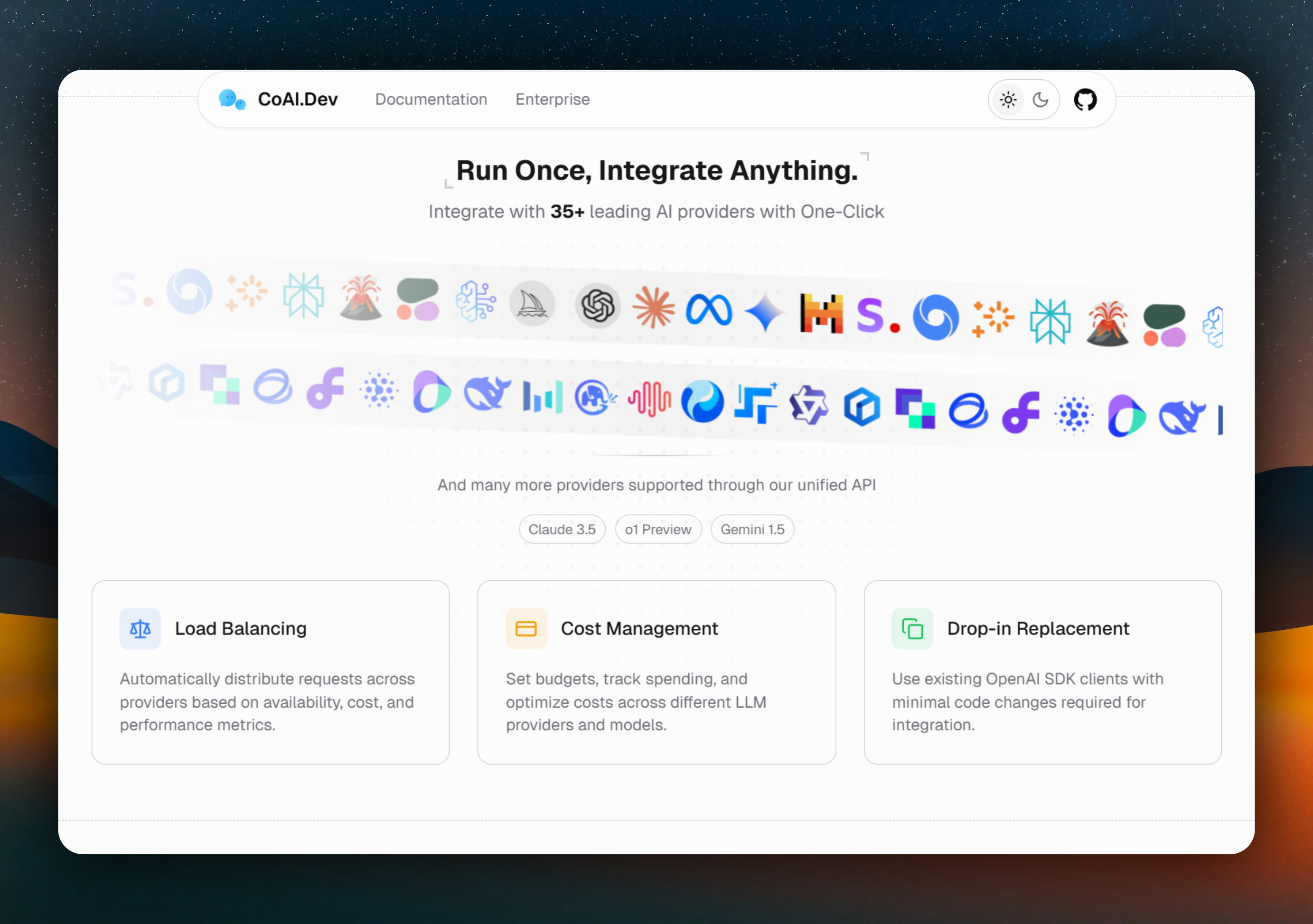
Wait... that's it? Yes. The repo comes with everything — MySQL, Redis, and the CoAI server all configured in docker-compose.yml. When I ran this, I watched the logs for about 30 seconds, and then:
Step 2: First Login (Pro Tip — Change the Password Immediately)
Open your browser and go to http://localhost:8000 (or your server's IP on port 8000). Login with:
- Username:
root - Password:
chatnio123456
⚠️ Here's the mistake I made: I left the default password for two days. Don't be me. Change it right away in the admin panel → System Settings → Change Password. CoAI is exposed on port 8000 by default, and if your server is public, anyone can try the default credentials. Yes, bots exist. Yes, they tried.
Step 3: Add Your First Model Provider
Go to Admin Panel → Channels → Add Channel. This is where the magic happens:
Name: My GPT-4
Provider: OpenAI
Models: gpt-4,gpt-4-turbo,gpt-3.5-turbo
API Key: sk-your-openai-key-here
Priority: 1
Weight: 10
I set up three channels in about 2 minutes:
- OpenAI GPT-4 (Priority 1, Weight 10) — primary
- Anthropic Claude 3.5 (Priority 2, Weight 10) — fallback
- Google Gemini Pro (Priority 3, Weight 5) — last resort
Why priority + weight? CoAI tries Priority 1 first. If you have multiple channels at the same priority, it distributes traffic by weight. So if one API key is hitting rate limits, you can add a second key with the same priority and split the load (e.g., Weight 5 on both).
Step 4: The Fun Part — Testing It
Once your channels are configured, go to the main chat interface. You should see your models available in the model selector dropdown. Type something like "Explain quantum computing like I'm five" and watch CoAI route it through your configured channels.
Pro debugging tip: If the response doesn't come through, check the Admin Panel → Logs. CoAI logs every request with the channel used, response time, and any error messages. I found a misconfigured API key this way — saved me 20 minutes of head-scratching.
Step 5 (Optional): Enable Web Search
CoAI supports full web search via SearXNG. To enable it:
- Deploy SearXNG (or use a public instance):
docker run -d --name searxng -p 4000:8080 searxng/searxng - In CoAI admin → System Settings → Web Search, set the SearXNG URL to
http://your-server:4000 - Test it: Ask CoAI "What's the latest news about AI?" — the response should include live search results from Google/DuckDuckGo.
I love this feature. It turns CoAI from a chatbot into an actual research assistant.
Common Pitfalls (What I Learned the Hard Way)
| Problem | Solution |
|---|---|
| "Connection refused" on first run | MySQL and Redis need ~30s to initialize. Wait and docker compose restart coai |
| Models not showing in dropdown | Check your channel configuration — you need to explicitly list the models in the "Models" field |
| Conversations not syncing | Clear your browser cache and re-login. Sync is automatic — no config needed |
| Docker image not found | The default image is programzmh/chatnio:latest — also available as a6020/coai:latest |
Final Thoughts
Setting up CoAI was genuinely one of the smoothest Docker deployments I've done for an AI platform. The fact that it bundles MySQL, Redis, the gateway, and the frontend into one docker-compose.yml is a massive time-saver. In about 10 minutes, I had a fully functional multi-model AI platform with billing, admin panel, and conversation sync — something that would have taken me days to build from scratch.
My recommendation: Start with the Docker Compose setup on a small VPS (2GB RAM is plenty for personal use). Add your API keys, play with the channel management, and once you're comfortable, explore the subscription billing if you need it. Skip the Pro version for now — the community edition already does 90% of what most people need.
🚀 Explore CoAI on Run This Ai
Docker Compose configs, system requirements, installation guides, and more — all in one place.
View CoAI Tool Page →