Getting Started with Cua: Build Your First Desktop-Controlling AI Agent
Step-by-step tutorial to set up Cua, create sandboxes, and build your first computer-use AI agent with Docker and Python SDK.

Getting Started with Cua: Build Your First Desktop-Controlling AI Agent
In this tutorial, you'll learn how to set up Cua and build a simple computer-use agent that can take screenshots and interact with a desktop environment. By the end, you'll have a working agent running in a Docker container.
🚀 Explore Cua on Run This Ai
Docker Compose configs, system requirements, installation guides, and more — all in one place.
View Cua Tool Page →Prerequisites
- Docker installed on your machine
- At least 4GB of RAM allocated to Docker
- A terminal with internet access to pull images
Step 1: Pull and Run Cua
Start by pulling the latest Cua Docker image and running it in a container:
docker pull xenium/cua:latest
docker run -d \
  --name cua \
  --restart unless-stopped \
  -p 8080:8080 \
  -v ./data/cua:/data \
  xenium/cua:latest
The container exposes port 8080 for the Cua API server. Data is persisted in the ./data/cua volume.
Step 2: Verify the Installation
Check that the container is running and responsive:
docker logs cua --tail 20
curl http://localhost:8080/health
You should see a JSON response confirming the service is healthy and listing available sandbox types (macOS, Linux, Windows).
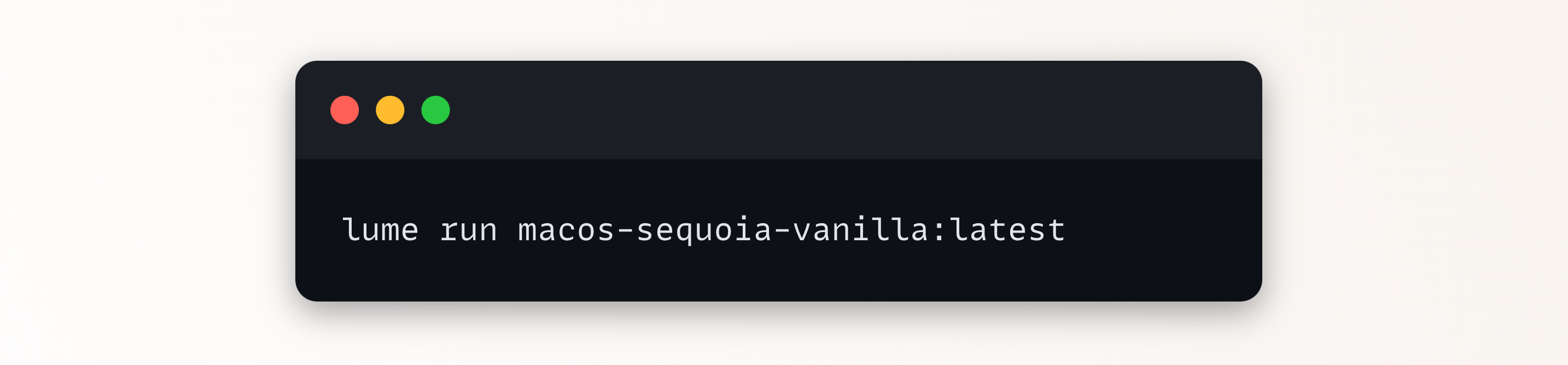
Step 3: Create Your First Sandbox
Using the Python SDK, create a sandbox environment and verify it's operational:
pip install cua-sdk-python

python3 -c "
from cua import Sandbox, Runtime

# Create a Linux sandbox
sandbox = Sandbox.create(os='linux', runtime=Runtime.DOCKER)
print(f'Sandbox ready: {sandbox.id}')

# Take a screenshot
screenshot = sandbox.screenshot()
with open('desktop.png', 'wb') as f:
    f.write(screenshot)
print('Screenshot saved to desktop.png')
"
This creates an isolated Linux desktop sandbox, takes a screenshot, and saves it locally. The sandbox has a full desktop environment with a window manager and common applications pre-installed.
Step 4: Run a Simple Agent
Now let's create a basic agent that opens a web browser and navigates to a URL:
from cua import Sandbox, Agent

sandbox = Sandbox.create(os='linux', runtime=Runtime.DOCKER)

agent = Agent(sandbox)
agent.run([
    'open Firefox browser',
    'type "runthisai.com" in the address bar',
    'press Enter',
    'wait for page to load',
    'take a screenshot'
])

screenshot = agent.last_screenshot()
print(f'Agent completed. Screenshot available.')
agent.cleanup()
This demonstrates the core pattern: create a sandbox → define agent actions → execute → capture results → clean up.
Step 5: Benchmark Your Agent
Cua includes a benchmarking suite to evaluate agent performance:
pip install cua-bench

cua-bench run --agent my_agent.py --tasks desktop-basics
cua-bench report --format html
This runs a standard set of desktop tasks and generates a performance report showing task completion rates, average execution times, and error rates.
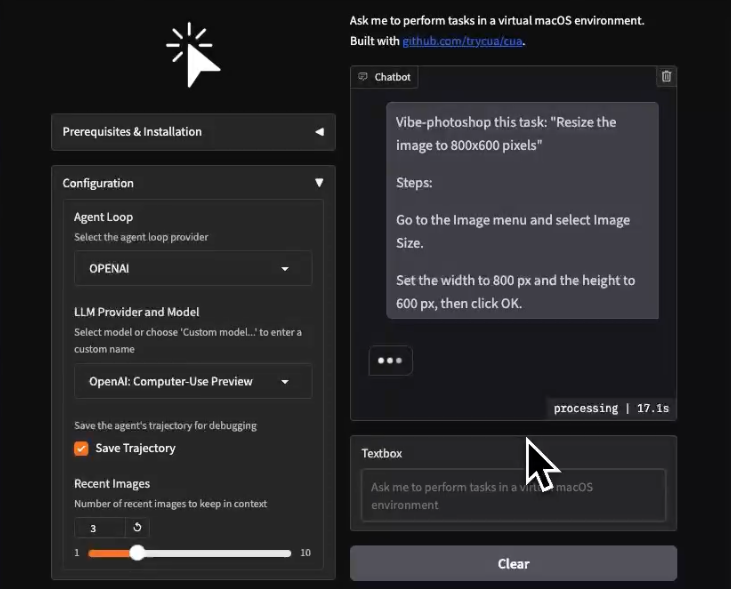
MacOS-Specific Setup
For macOS agents, Cua uses native virtualization through the Virtualization framework. No additional setup is needed — the Cua driver automatically detects macOS and creates appropriate sandboxes:
# On macOS, Cua automatically uses native virtualization
sandbox = Sandbox.create(os='macos', runtime=Runtime.NATIVE)
Troubleshooting
| Issue | Solution |
|---|---|
| Docker permission denied | Add your user to the docker group: sudo usermod -aG docker $USER |
| Sandbox creation fails | Increase Docker memory to at least 4GB in Docker Desktop settings |
| Agent timeout | Agents use a 30-second default timeout. Increase with timeout=60 in agent config |
| macOS sandbox not available on Linux | macOS virtualization requires a macOS host. Use Linux sandboxes on Linux hosts |
Conclusion
You've successfully set up Cua, created a sandbox, and built your first computer-use agent. The same pattern scales from basic screenshot capture to complex multi-step desktop automation workflows. With Cua's Docker support, benchmarking suite, and cross-platform SDKs, you have everything you need to build production-grade agents that interact with real desktop environments.
🚀 Deploy Cua on Run This Ai
Get Docker Compose configs, system requirements, and installation guides — all verified and ready to use.
View Cua Tool Page →