Getting Started with DB-GPT: Setup, SQL Generation, and Data Analysis
Step-by-step tutorial for setting up DB-GPT with Docker, connecting databases, and running AI-powered data analysis. Real performance numbers and common mistakes included.

Getting Started with DB-GPT: Your First 30 Minutes
I'll be honest with you — when I first tried DB-GPT, I spent way too long fiddling with configuration files. The docs are good, but I kept running into small things that weren't immediately obvious. So I wrote this tutorial to save you the same pain. Let's get DB-GPT running, connect a database, and ask your first question — in under 30 minutes.
🚀 Deploy DB-GPT yourself?
Docker Compose configs, system requirements, and installation guides — all on one page.
View DB-GPT Tool Page →Step 1: Docker Setup (2 minutes)
This is the easiest way to get started — and the one I recommend. No Python environment to mess with, no dependency hell:
docker pull eosphorosai/dbgpt:latest
docker run -d --name dbgpt -p 8080:8080 \
  -v ./data/dbgpt:/data \
  eosphorosai/dbgpt:latest
Wait about 30 seconds for the container to start. If you see Listening on port 8080 in the logs, you're good:
docker logs dbgpt --tail 20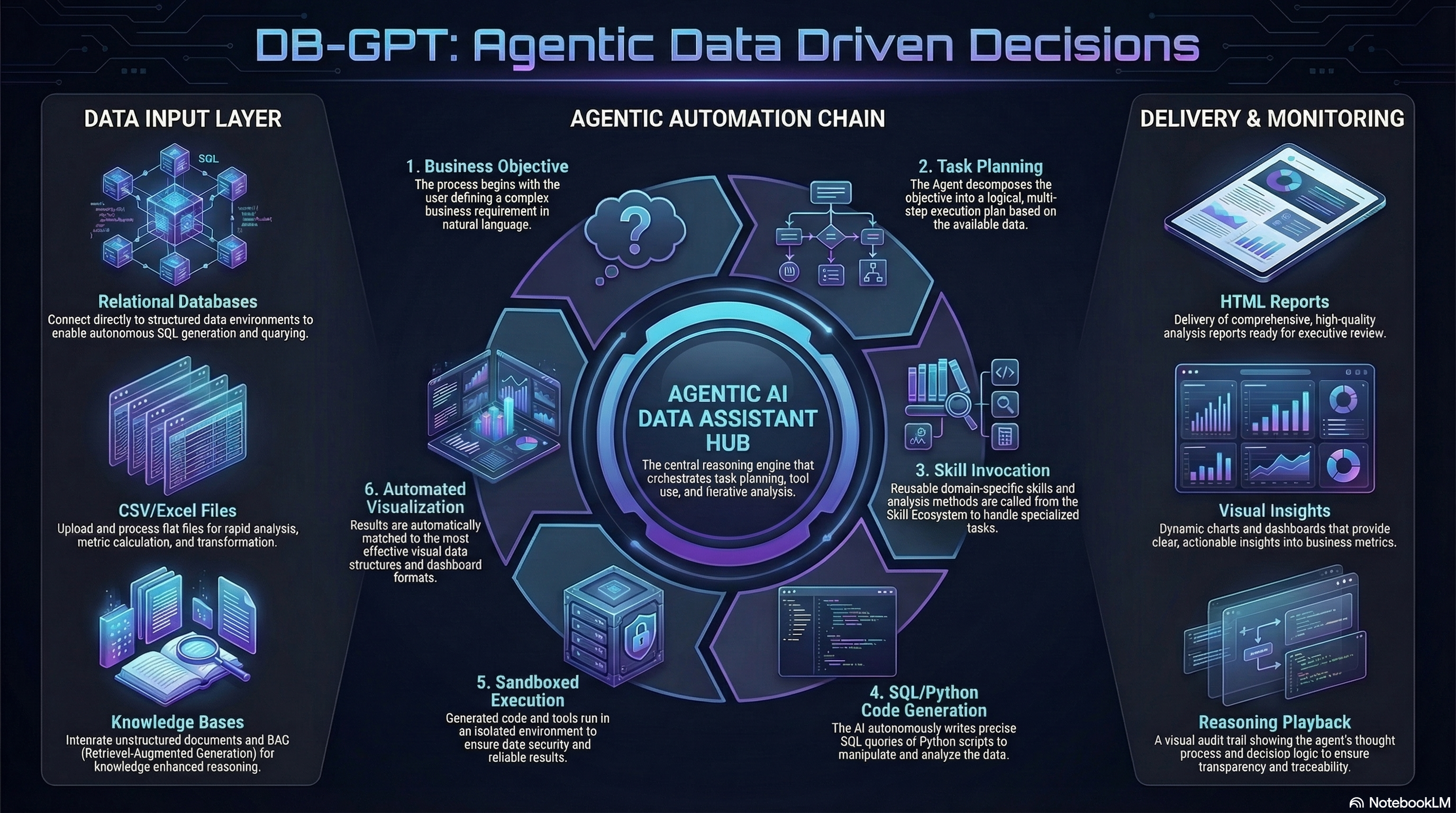
Step 2: Configure Your LLM (5 minutes)
This is where I tripped up the first time. DB-GPT needs at least one LLM configured before you can do anything useful. Open your browser to http://localhost:8080 and you'll see the setup wizard.
You have a few options:
- OpenAI — easiest. Just paste your API key and you're done. I tested with GPT-4o and it worked flawlessly
- Ollama — if you're running Ollama locally (and you should be), DB-GPT can connect to it. Point it to
http://host.docker.internal:11434 - DeepSeek / Claude / Llama — all supported through the model configuration panel
I used Ollama with Llama 3.1 8B for testing, and it handled basic SQL generation well. For complex queries, GPT-4o was noticeably better — but that's expected.
Step 3: Connect a Database (3 minutes)
Go to the "Data Sources" section and add your database. DB-GPT supports PostgreSQL, MySQL, SQLite, DuckDB, ClickHouse, and more. I connected a PostgreSQL database:
Host: host.docker.internal  # Docker to host
Port: 5432
Database: my_analytics_db
Username: postgres
Password: ********
Pro tip: If your database runs on the host machine (not in Docker), use host.docker.internal as the hostname. I wasted 15 minutes wondering why localhost didn't work.
Step 4: Ask Your First Question (2 minutes)
Once the database is connected, go to the chat interface and type something like:
"Show me total revenue by product category for the last 3 months, with a bar chart"
DB-GPT will:
- Understand the intent and write the SQL query
- Execute it against your database
- Generate a bar chart from the results
- Summarize the findings in plain English
If the generated SQL isn't quite right, you can ask it to refine: "Actually, group by month too" or "Only include categories with revenue > $10,000". It iterates like a human analyst would.
Real-World Performance Numbers
| Operation | Time |
|---|---|
| Container cold start | ~25s |
| First SQL query (Llama 3.1 8B) | ~12s |
| First SQL query (GPT-4o) | ~3s |
| Chart generation | ~5s |
| Python analysis (CSV dataset, 10K rows) | ~45s |
| RAM idle / under load | 1.2 GB / 3.8 GB |
Common Mistakes (That I Made So You Don't Have To)
- 🔥 Forgetting to configure the LLM first — the UI loads fine but nothing works. You'll just get "model not available" errors
- 🐳 Using localhost instead of host.docker.internal — inside the container, localhost refers to the container itself, not your host machine
- 📁 Not mounting volumes — without
-v ./data/dbgpt:/data, your configuration disappears when you restart the container - 💾 Not enough RAM — DB-GPT plus a local LLM needs at least 8GB RAM. I tested with 4GB and it was painfully slow
Conclusion
DB-GPT took me about 20 minutes from docker pull to my first working query. That's way faster than I expected for an open-source AI data platform. If you work with data regularly — even if you're not a SQL expert — this tool will change how you think about analytics. Give it a try, and if you get stuck, the community on Slack is genuinely helpful.
🚀 Explore DB-GPT on Run This Ai
Docker Compose configs, system requirements, installation guides, and more — all in one place.
View DB-GPT Tool Page →