Getting Started with Buzz: Transcribe Audio Files in Minutes
Step-by-step tutorial for installing and using Buzz, the free offline audio transcription app powered by OpenAI Whisper. Transcribe interviews, lectures, and meetings.
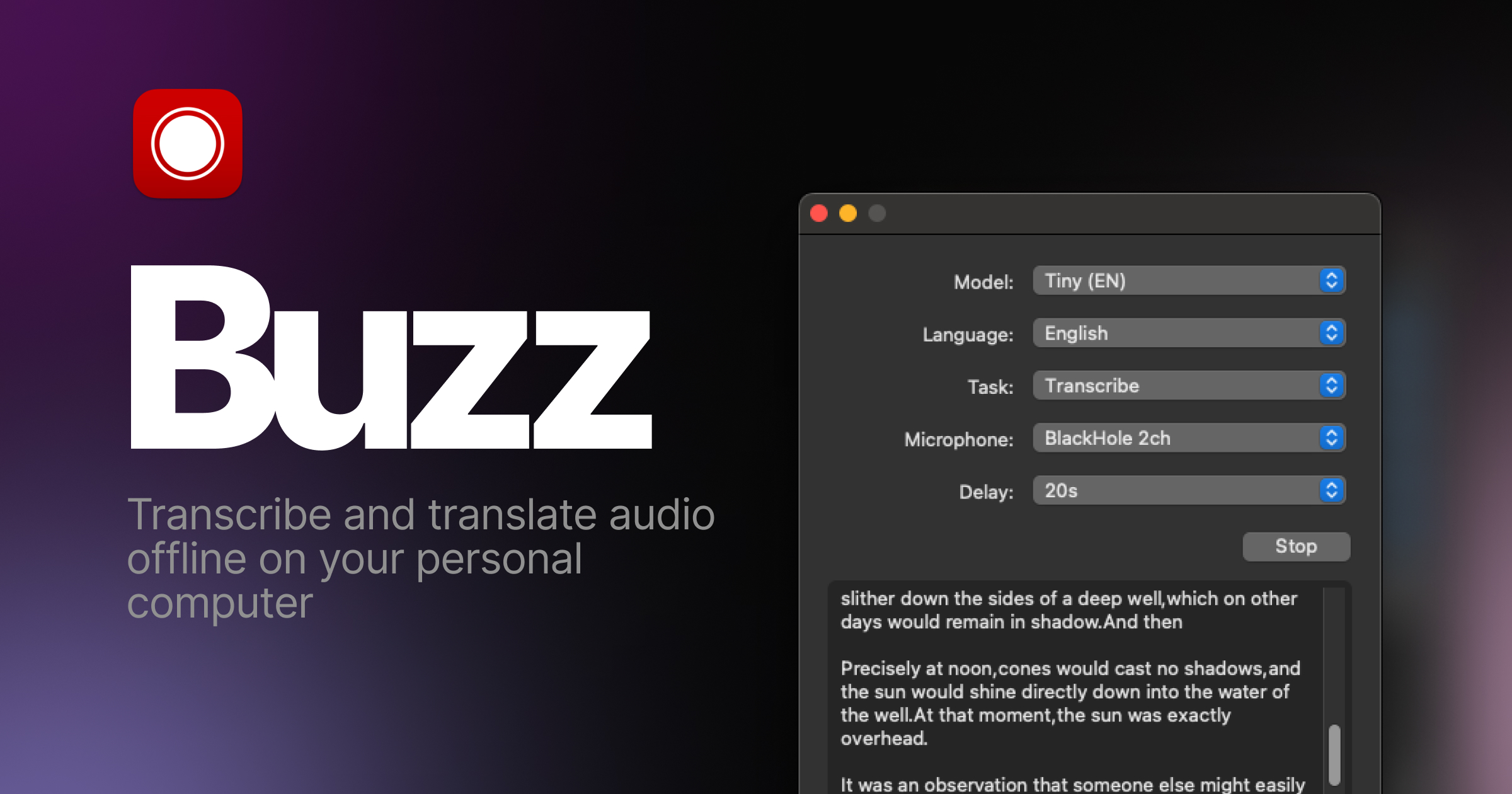
Getting Started with Buzz: Transcribe Audio Files in Minutes
Buzz makes offline audio transcription dead simple. In this tutorial you will go from zero to transcribing your first audio file in under five minutes. Whether you have an interview recording a lecture or a meeting audio file Buzz handles it all with no cloud dependency and no subscription fees.
Installation
Buzz is available on all major platforms. Choose your method:
Windows
Download the latest installer from the GitHub Releases page. Run the .exe installer and follow the prompts. Buzz will be available in your Start menu.
macOS
Download the .dmg file from GitHub Releases, open it, and drag Buzz to your Applications folder. On first launch you may need to right-click and select Open to bypass Gatekeeper.
Linux
Buzz is available on Flathub: flatpak install flathub io.github.chidiwilliams.Buzz. Or install via Snap: snap install buzz. You can also run it from source using Python.
From Source (Python)
git clone https://github.com/chidiwilliams/buzz.git
cd buzz
pip install -r requirements.txt
python -m buzz
Transcribe Your First File
- Launch Buzz — Open the application from your Start menu, Applications folder, or terminal.
- Import Audio — Click the Import button or drag an audio file (MP3, WAV, M4A, OGG) into the window.
- Select Model — Choose a Whisper model. Start with "base" for a good balance of speed and accuracy. Click Download if this is your first time using that model.
- Choose Language — Set the spoken language or leave it on Auto-detect. For translation, check "Translate to English".
- Run Transcription — Click the Transcribe button. Progress appears in real time. The time depends on your audio length and model size.
- Export Results — Once complete, export as TXT, SRT, VTT, TSV, or JSON. SRT files are ready for video subtitles.
Real-Time Recording
Click the Record button to capture live audio from your microphone. Transcription appears as you speak. This is perfect for meetings, dictation, or live captioning.
Batch Processing
Drop multiple audio files into Buzz at once. Each file gets transcribed in sequence. You can walk away and come back to a folder full of completed transcripts.

Tips for Best Results
- Use the large-v3 model for maximum accuracy on clear audio
- For noisy recordings try the medium model first — it handles background noise better
- Set the language manually if auto-detect struggles with accented speech
- Export as SRT directly for video subtitling workflows
- Use batch mode for overnight processing of large audio archives
Conclusion
Buzz puts enterprise-grade speech recognition on your desktop with zero recurring cost. Install it today and start transcribing offline with complete privacy. The full source code and documentation are available on GitHub.