Getting Started with Inngest: Docker Setup and First Workflow
A step-by-step tutorial for setting up Inngest with Docker, creating your first function, and monitoring workflow execution.

Getting Started with Inngest: Docker Quick Start
This tutorial walks you through setting up Inngest locally using Docker. You will have a fully functional Inngest dev server running in minutes, ready to orchestrate your first AI workflow.
Prerequisites
- Docker and Docker Compose installed
- Basic familiarity with TypeScript or Python
- A PostgreSQL database (or use the built-in SQLite for development)
Step 1: Run Inngest with Docker
The easiest way to get started is with the official Inngest Docker image:
docker pull inngest/inngest:latest
docker run -d --name inngest-dev \
  -p 8080:8080 \
  -v $(pwd)/inngest-data:/data \
  inngest/inngest:latest
This starts the Inngest dev server on port 8080 with persistent storage at ./inngest-data.
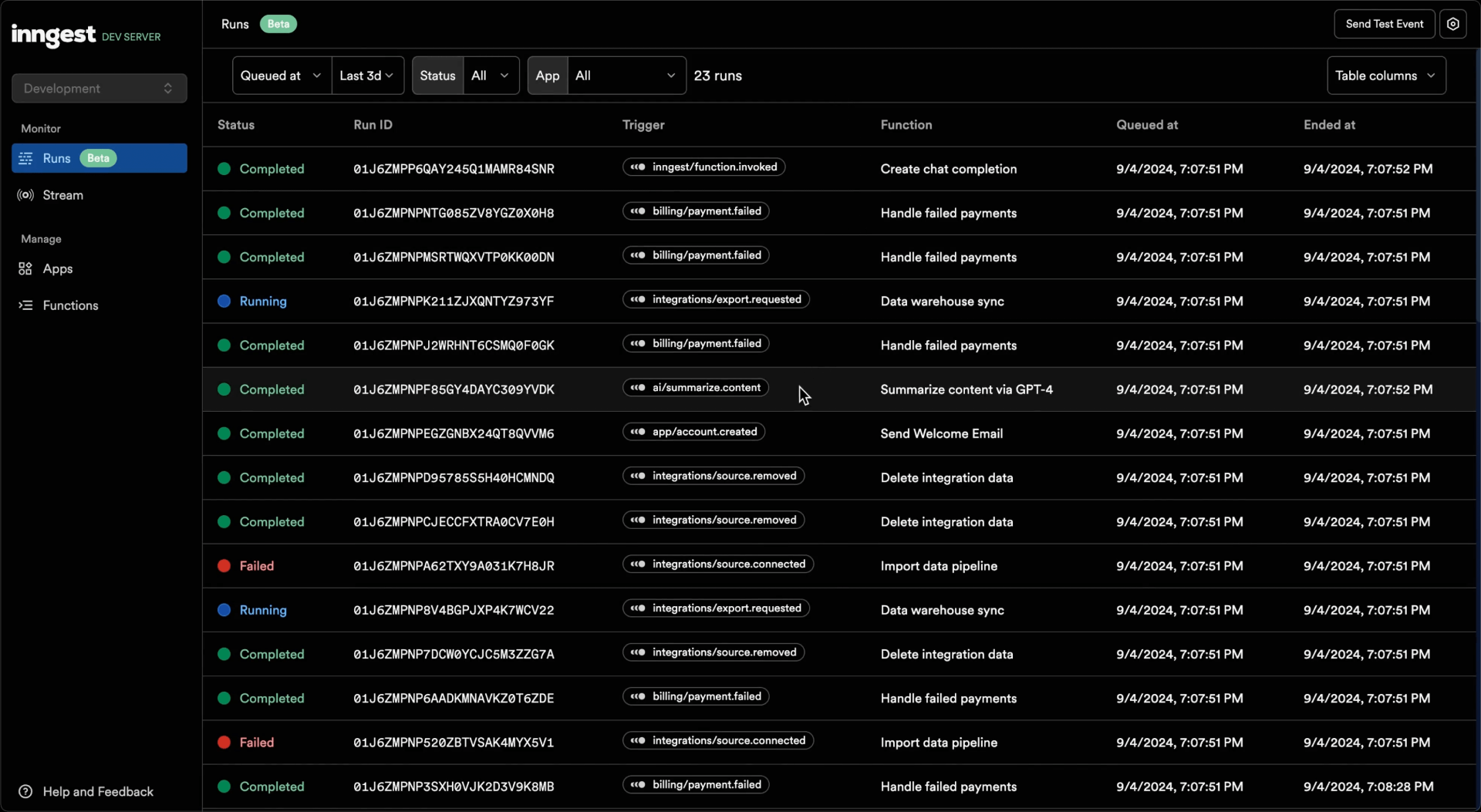
Step 2: Access the Dashboard
Open http://localhost:8080 in your browser. You will see the Inngest dashboard showing all registered functions, their execution history, and real-time logs. The dashboard is your command center for monitoring and debugging workflows.
Step 3: Create Your First Function
Inngest functions are just regular functions in your application code. Here is a simple example in TypeScript:
import { inngest } from "./inngest/client";

// A basic hello world function
export const helloWorld = inngest.createFunction(
  { id: "hello-world" },
  { event: "test/hello.world" },
  async ({ event, step }) => {
    await step.run("say-hello", async () => {
      return { message: `Hello, ${event.data.name || "World"}!` };
    });
  },
);
Step 4: Trigger Your Function
Send an event to trigger the function using the Inngest SDK or the dashboard UI. In the dashboard, you can manually send events and watch them execute step by step.
Step 5: Monitor Execution
The dashboard shows each execution in real-time. You can inspect step outputs, retry failed steps, and view logs — all without leaving the browser. This makes debugging multi-step workflows straightforward.
Docker Compose for Production
For a production setup with PostgreSQL, use this docker-compose.yml:
services:
  inngest:
    image: inngest/inngest:latest
    restart: unless-stopped
    ports:
      - 8080:8080
    volumes:
      - ./data/inngest:/data
    environment:
      - INNGEST_DATABASE_URL=postgresql://user:pass@postgres:5432/inngest
  postgres:
    image: postgres:16
    restart: unless-stopped
    environment:
      POSTGRES_USER: user
      POSTGRES_PASSWORD: pass
      POSTGRES_DB: inngest
    volumes:
      - ./data/postgres:/var/lib/postgresql/data
Conclusion
Setting up Inngest is straightforward with Docker. Within minutes you have a production-grade workflow orchestration engine running locally. From here, you can start building AI pipelines, background job processors, and event-driven applications with durable execution guarantees.