GoNavi Tutorial: Connect MySQL, PostgreSQL and Redis in Minutes
Step-by-step tutorial: deploy GoNavi with Docker, connect MySQL, PostgreSQL and Redis, run natural-language queries with the AI assistant, and wire it up as an MCP server.
In this hands-on tutorial, we will get GoNavi running with Docker and connect to three very different data sources — MySQL, PostgreSQL, and Redis — in under ten minutes. No Electron, no heavy installers: just a ~30MB Go binary (or container) and a browser.
🚀 Want to deploy GoNavi yourself?
Docker configs, system requirements, and installation guides — all on one page.
View GoNavi Tool Page →Step 1 — Launch the web server
The fastest path is the official image:
docker run -d -p 8080:8080 \
  ghcr.io/syngnat/gonavi-cli:latest
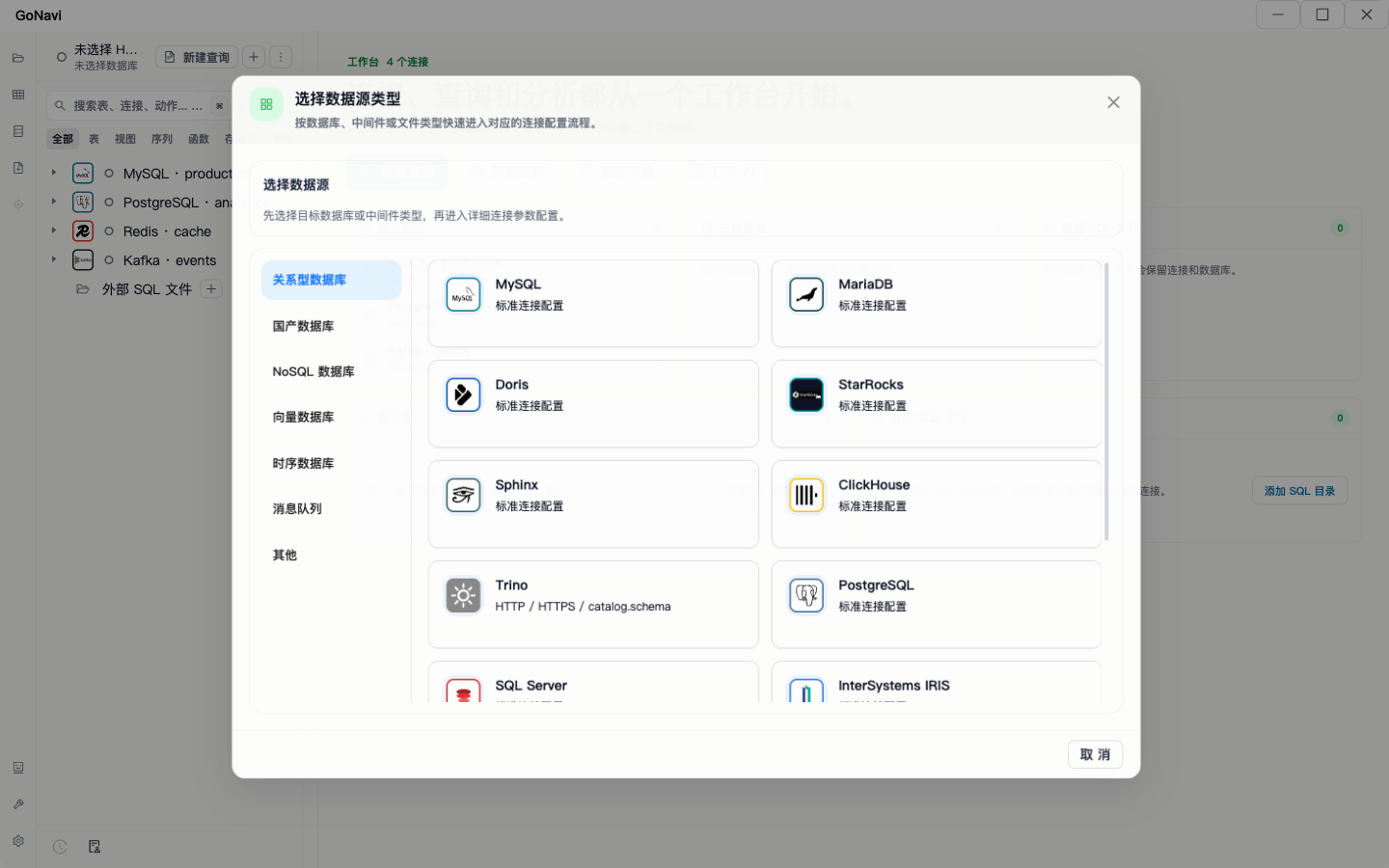
Open http://localhost:8080 and you will see the home workbench with connection cards for every supported engine.
Step 2 — Add your first connections
Click New Connection and fill in the details for each source:
| Engine | Host | Port |
|---|---|---|
| MySQL | 127.0.0.1 | 3306 |
| PostgreSQL | 127.0.0.1 | 5432 |
| Redis | 127.0.0.1 | 6379 |
GoNavi persists your connection profiles, so you only configure each database once.
Step 3 — Query in plain English
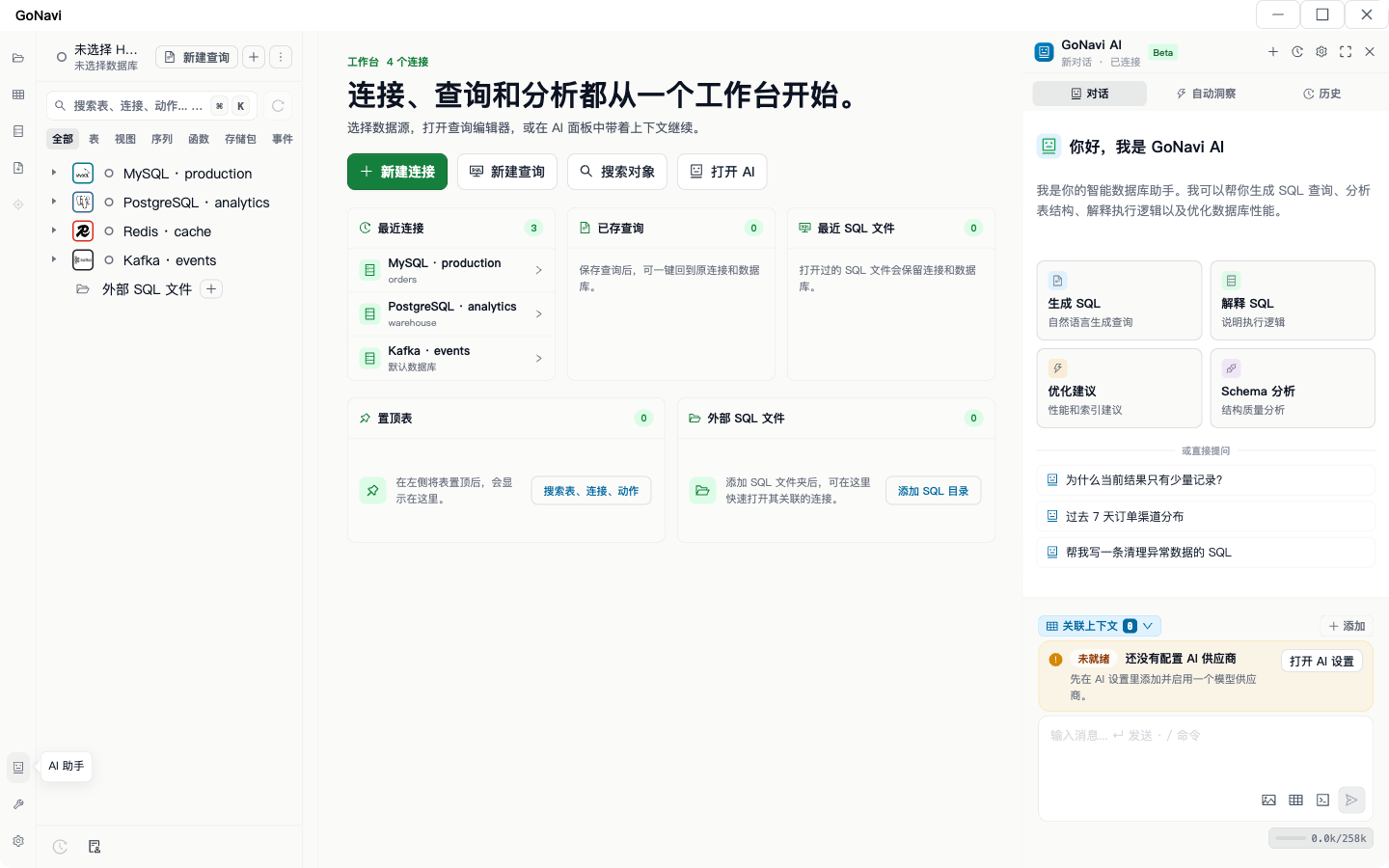
Open the AI Assistant panel. Ask something like "show me the 10 most recent orders joined with customer names" and GoNavi translates it into the correct SQL dialect for the connected engine, then lets you run and inspect the result — no prompt-copying between tools.
Step 4 — Go further: CLI and MCP
For automation, the CLI flavor lets you run the same queries from cron jobs and shell scripts. For AI workflows, start the MCP server flavor and register it with your favorite MCP-compatible assistant — it will then be able to list tables, inspect schemas, and run read queries against your databases with your explicit approval.
🚀 Want to deploy GoNavi yourself?
Docker configs, system requirements, and installation guides — all on one page.
View GoNavi Tool Page →