How to Deploy GPUStack with Docker: Step-by-Step Setup Tutorial
From docker-compose to your first served model — run GPUStack on one machine or a cluster of GPU nodes in under 15 minutes.
🚀 Want to deploy GPUStack yourself?
Docker configs, system requirements, and installation guides — all on one page.
View GPUStack Tool Page →In this tutorial you will get a GPUStack cluster running with Docker, add a worker node, and serve your first model with an OpenAI-compatible API — in under 15 minutes.
Step 1: System Requirements
You need a Linux machine (or macOS) with Docker installed. The server itself is lightweight (2 CPU / 4 GB RAM minimum; 4 CPU / 8 GB recommended). Worker nodes need the GPUs you want to pool — NVIDIA cards work out of the box, and AMD / Apple Silicon are supported too.
Step 2: Start the Server with Docker Compose
Create a docker-compose.yml:
services:
  gpustack:
    image: gpustack/gpustack:latest
    restart: unless-stopped
    ports:
      - 8080:8080
    volumes:
      - ./data/gpustack:/data
Then start it:
docker compose up -d
Wait a few seconds, then open http://localhost:8080 — the GPUStack UI greets you with a first-run wizard that creates your admin account.
Step 3: Add GPU Worker Nodes
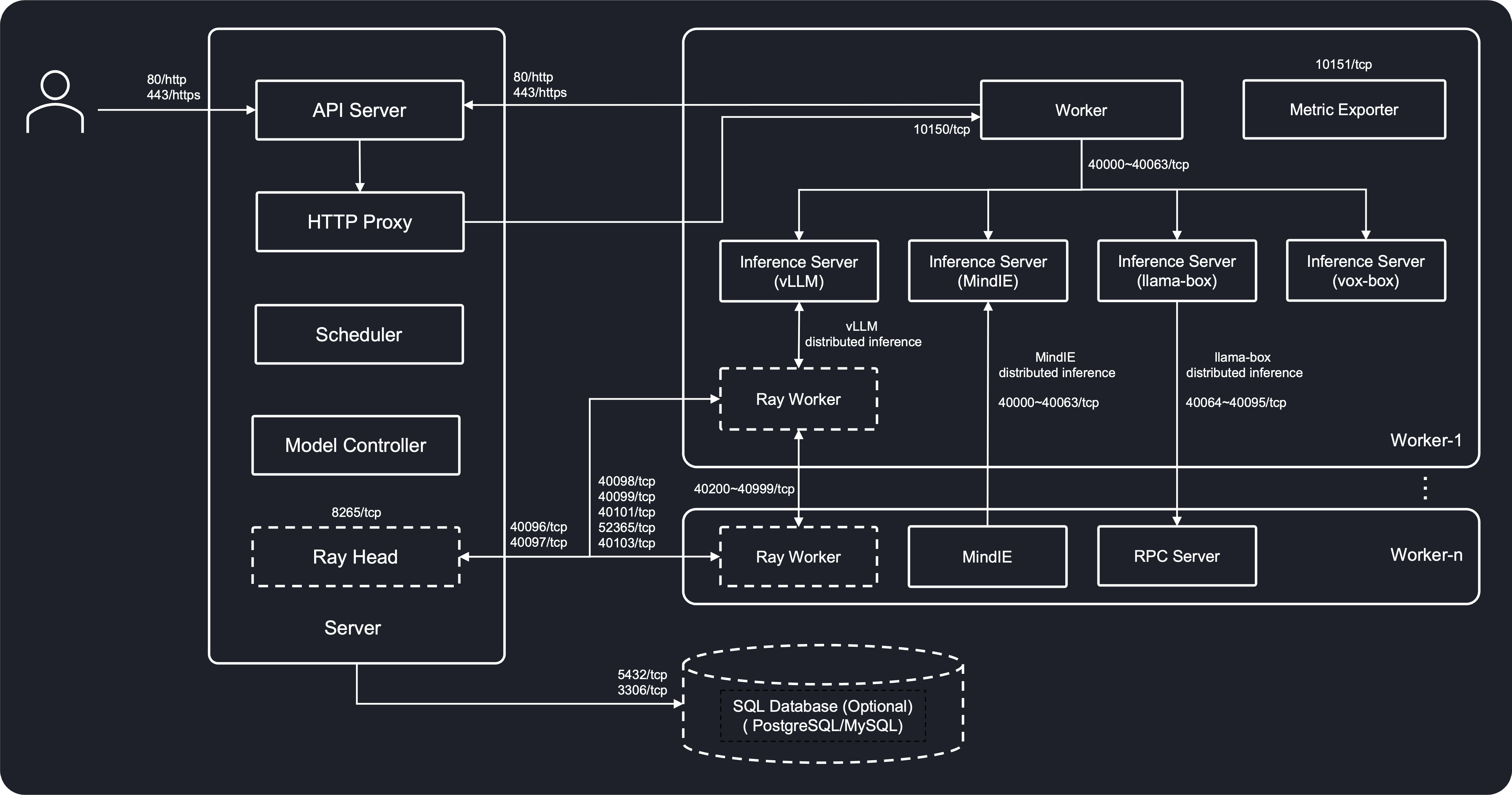
GPUStack uses an agent model: every machine that contributes GPUs runs the same agent binary, which auto-registers with the server. On each worker run:
curl -sfL https://get.gpustack.ai | sh -s - --server-url http://<server-ip>:8080 --token <your-token>
Grab the token from the UI (Settings → Agents). Within seconds the new node appears in the dashboard with its GPUs detected automatically.
Step 4: Serve Your First Model
In the UI, go to Models → Add, pick a model from the catalog (for example llama3.1-8b), and click deploy. GPUStack pulls the image, warms the model up, and exposes an endpoint like:
https://<server>/v1/chat/completions
Test it with curl:
curl http://localhost:8080/v1/chat/completions \
  -H "Authorization: Bearer <your-key>" \
  -H "Content-Type: application/json" \
  -d '{"model":"llama3.1-8b","messages":[{"role":"user","content":"Hello!"}]}'
Step 5: Scale and Share
GPUStack automatically places replicas on free GPUs across the cluster and scales with load. Create API keys per user or team in the UI so everyone can call the endpoint without touching infrastructure.
Troubleshooting Checklist
| Symptom | Fix |
|---|---|
| Worker not appearing | Check firewall: port 8080 must be reachable from the worker |
| GPU not detected | Install NVIDIA drivers + nvidia-container-toolkit on the worker |
| Slow first request | Normal — model warm-up downloads weights; enable warm-up in model settings |
That is it — you now have a production-grade, multi-node GPU cluster for serving and training, managed entirely with open-source tooling.
🚀 Ready to unify your GPU fleet?
System requirements, Docker Compose configs, and full install guides on the tool page.
View GPUStack Tool Page →