Getting Started with Harbor: A Step-by-Step Tutorial
Follow this practical tutorial to install Harbor, start your first LLM stack, add web search and voice, and use it with coding agents - all in minutes.
Getting Started with Harbor
In this step-by-step tutorial, we'll walk through installing Harbor, starting your first LLM stack, and exploring its key features. By the end, you'll have a fully functional local AI environment running in minutes.
🚀 Want to deploy Harbor yourself?
Docker configs, system requirements, and installation guides — all on one page.
View Harbor Tool Page →Prerequisites
- Docker and Docker Compose installed
- At least 8GB RAM (16GB recommended)
- Linux, macOS, or Windows with WSL2
- Git (for cloning if needed)
Step 1: Install Harbor
The fastest way to install Harbor is via the install script:
curl -fsSL https://raw.githubusercontent.com/av/harbor/main/install.sh | bash
This installs the harbor CLI binary to /usr/local/bin. You can verify the installation with:
harbor --version

Step 2: Start Your First LLM Stack
Starting a basic LLM stack with Open WebUI and Ollama is as simple as:
harbor up
This command:
- Pulls the latest Ollama and Open WebUI images
- Generates a Docker Compose configuration with everything pre-wired
- Starts both services with proper networking
- Opens Open WebUI in your browser at
http://localhost:3000
Step 3: Add Web Search and Voice
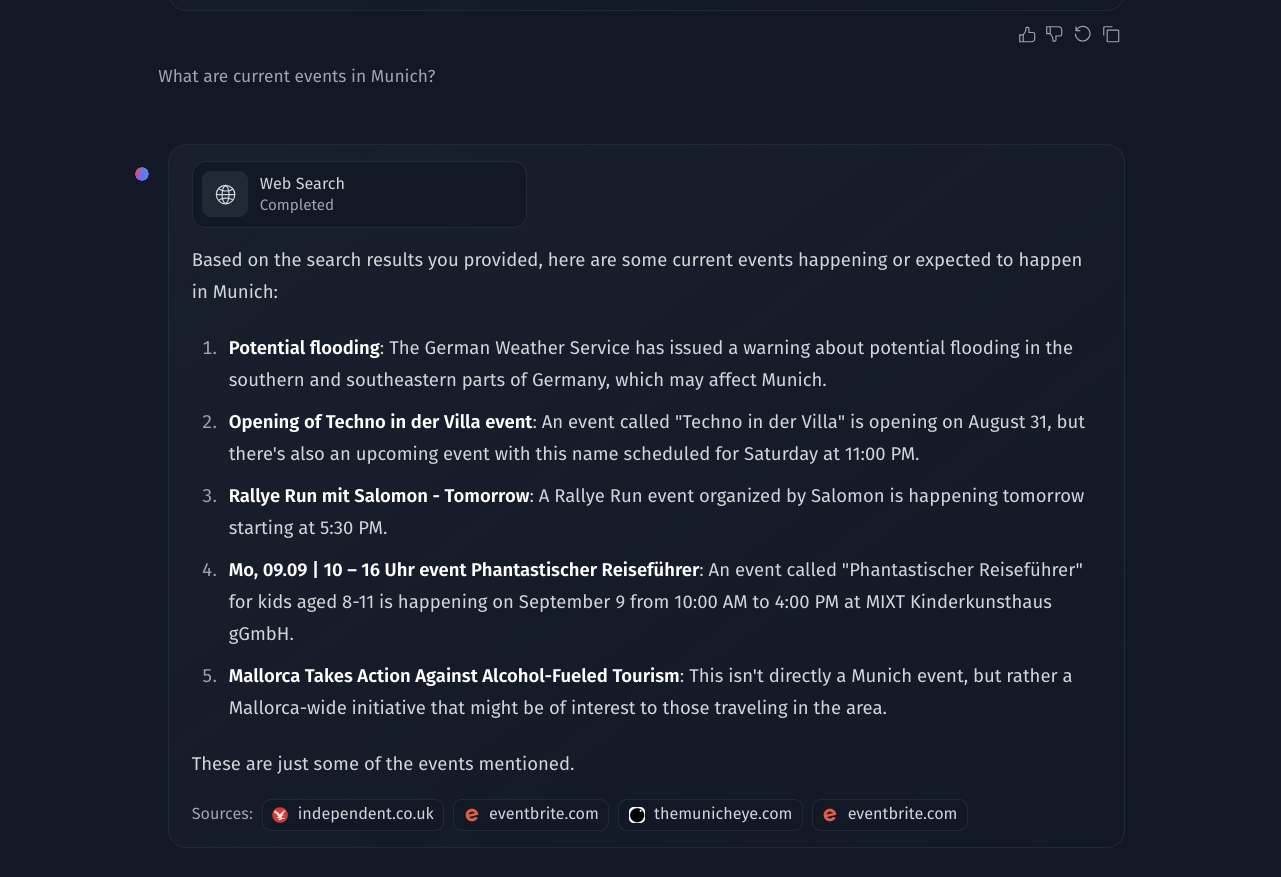
One of Harbor's superpowers is adding complementary services to your stack. To add web search and speech capabilities:
harbor up searxng speaches
Harbor automatically connects SearXNG and Speaches to your Open WebUI instance — no configuration needed.
Step 4: Explore Available Services
List all available services with:
harbor list
This shows over 150 services organized by category — LLM backends, frontends, vector databases, MCP servers, agent frameworks, image generation, and more.
Step 5: Use Harbor with Coding Agents
Harbor's launch command lets you use local models from AI coding tools:
# Run Codex against Ollama with Qwen model
harbor launch --backend ollama --model qwen3.5:4b codex

# With web search enabled
harbor launch --web --backend ollama --model qwen3.5:4b codex
Step 6: The Harbor Companion App
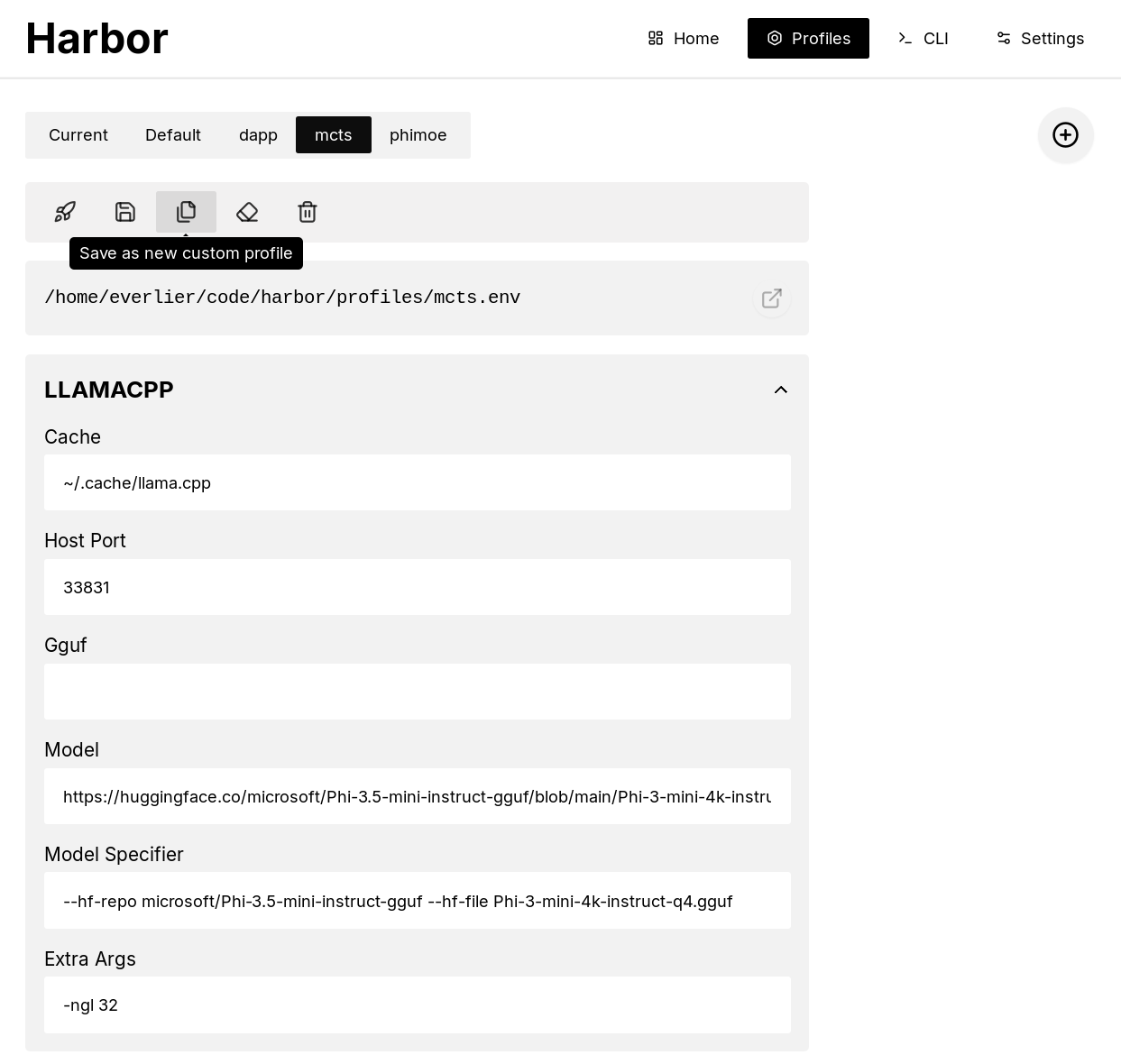
Harbor also ships with a desktop companion app built with Tauri. It provides a visual interface for managing services, viewing logs, and monitoring resource usage. The app is available on macOS and Linux.
Advanced: Harbor Boost
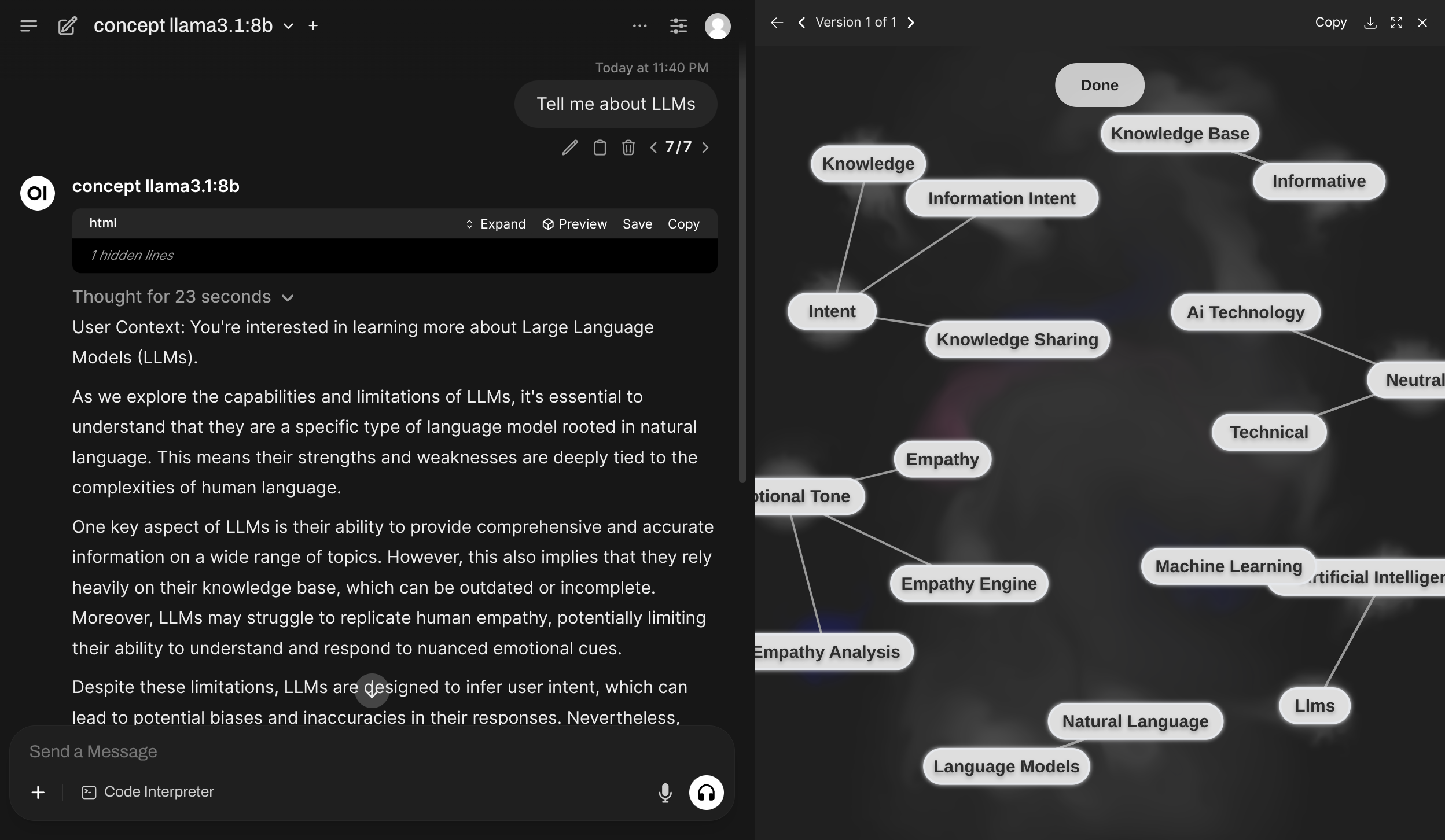
Boost adds agentic capabilities to any Harbor backend:
# Start a workflow with Boost modules
harbor launch --workflow quickhop codex

# Run a deep research workflow
harbor launch --workflow deephop --model qwen3.5:4b codex
Troubleshooting
Harbor includes a built-in diagnostic tool:
harbor doctor
This checks Docker availability, port conflicts, and service connectivity. Common issues include port 3000 already in use (Open WebUI) or insufficient Docker resources.
🚀 Deploy Harbor on your own hardware
System requirements, Docker Compose setup, and full docs on the tool page.
View Harbor Tool Page →Conclusion
Harbor transforms the complex task of setting up a local AI stack into a single command. Whether you're a developer exploring LLMs, a homelab enthusiast, or a researcher running experiments, Harbor's pre-wired ecosystem of 150+ services saves hours of configuration work. The Apache-2.0 license, active community, and growing service catalog make it one of the most practical tools for self-hosted AI in 2026.