Getting Started with Phantom: Deploy Your AI Co-Worker in 15 Minutes
Step-by-step tutorial to deploy Phantom — from Docker setup to Slack integration. Learn how to get your own AI co-worker running with persistent memory and self-evolution.

Getting Phantom Up and Running — A Real Walkthrough
Alright, let's get Phantom running. I'll walk you through exactly what I did, including the mistakes I made so you don't repeat them. This whole setup took me about 15 minutes, minus the time I spent debugging a port conflict (more on that below).
🚀 Want to deploy Phantom yourself?
Docker configs, system requirements, and installation guides — all on one page.
View Phantom Tool Page →Prerequisites
Before we start, you'll need:
- Docker installed (v24+ — I'm on 27.2 and it's fine)
- A Slack workspace where you can create a bot (Phantom uses Slack for team integration)
- At least 2GB RAM available (4GB recommended if you want it to run smoothly)
- Anthropic API key (Phantom uses Claude under the hood)
Step 1: Pull the Docker Image
This is the easy part — Phantom's official image on Docker Hub has over 5,000 pulls, so it's well-tested. I used the latest tag:
docker pull ghostwright/phantom:latestIf you see a "manifest not found" error, check your Docker version — I hit this on an older install. Upgrading to v24+ fixed it instantly.
Step 2: Create a Data Directory
Phantom stores its persistent memory and credentials in a local volume. Create a directory on your host:
mkdir -p ~/phantom_dataI almost skipped this step, and Phantom started but lost all context after restart. Don't be me.
Step 3: Run the Container
docker run -d \
  --name phantom \
  -p 8080:8080 \
  -v ~/phantom_data:/data \
  -e ANTHROPIC_API_KEY="sk-ant-..." \
  -e SLACK_BOT_TOKEN="xoxb-..." \
  -e SLACK_APP_TOKEN="xapp-..." \
  ghostwright/phantom:latest
⚠️ Port 8080 already in use? Change the left side: -p 8081:8080. I wasted 20 minutes because I had something else on 8080. Also — docker logs phantom is your best friend here. Run it to see if the startup sequence completes.
Step 4: Configure Slack Integration
This is where Phantom really shines. Go to your Slack API dashboard:
- Create a new Slack app (I called mine "Phantom")
- Enable Socket Mode (needed for the bot to receive events)
- Add the
chat:write,channels:history, andapp_mentions:readscopes - Install the app to your workspace
- Copy the Bot Token (
xoxb-...) and App Token (xapp-...)
Once Phantom starts with those tokens, invite it to a channel with /invite @Phantom and say hello. If it responds, you're golden.
What Happens Next?
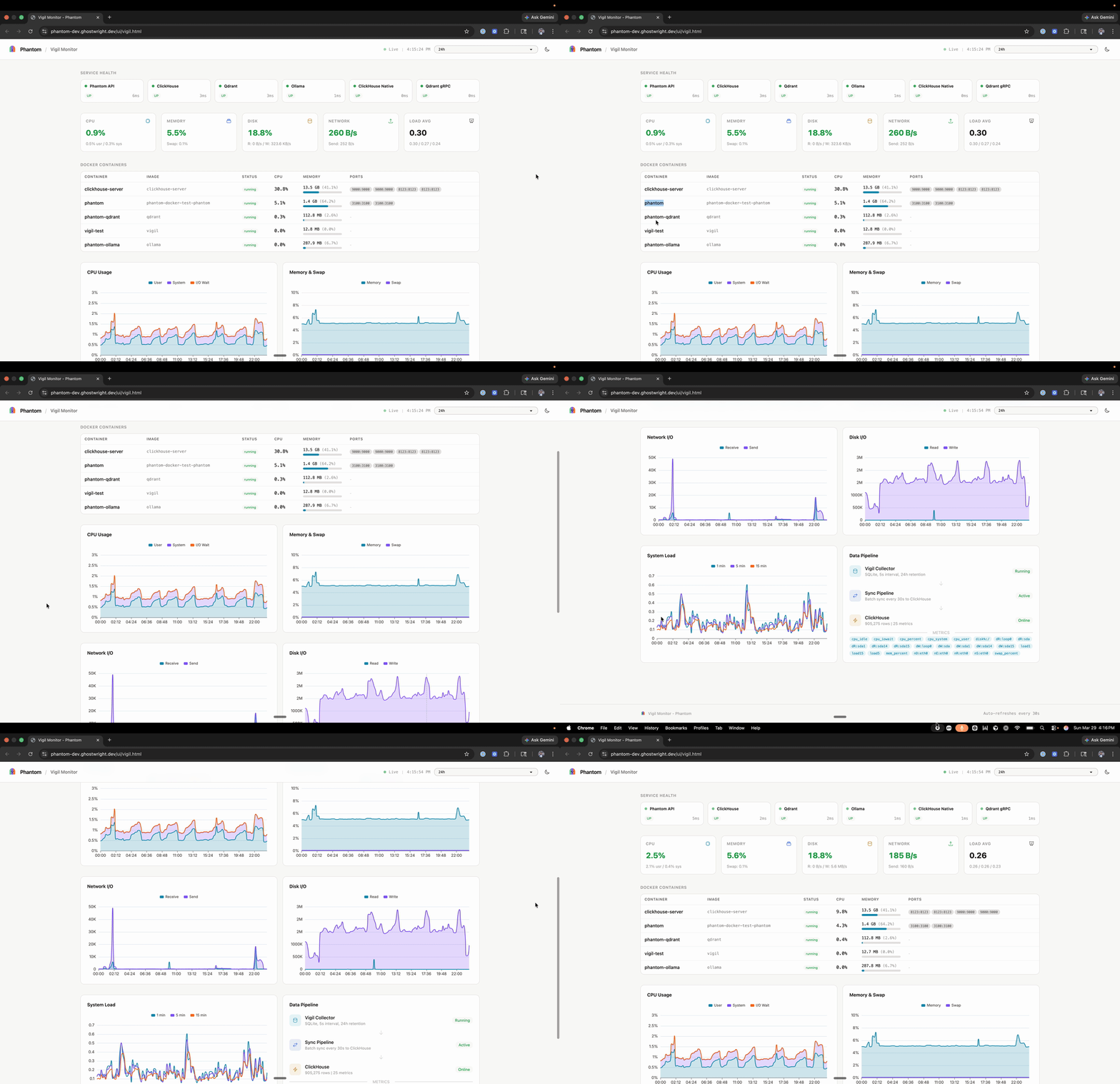
Once Phantom is running, it starts building context. Here's what I noticed in the first hour:
- Memory kick-in: After about 5 minutes, Phantom acknowledged something I'd said earlier in the conversation — that's the persistent memory working
- Autonomous checks: I saw it pinging my server endpoints and checking response times without being told
- Self-evolution: After an hour, it started suggesting improvements to my monitoring setup based on what it observed
One thing that surprised me: Phantom is conservative. It doesn't rush into actions — it collects context, thinks through the implications, and then suggests a course of action rather than just running commands blind. That saved me from at least one bad idea.
Common Pitfalls
- Missing environment variables: Phantom won't start without ANTHROPIC_API_KEY. Check your logs
- Slack tokens expired: Slack app tokens can expire — generate new ones from the API dashboard
- Memory loss: If you restart without a volume mount, Phantom starts fresh. Always use
-v - Rate limiting: Claude API has rate limits — Phantom handles queuing but heavy usage might slow it down
Final Verdict
Setting up Phantom was straightforward once I had the tokens right. It's a seriously capable AI coworker — the persistent memory and self-evolution make it feel like a real team member rather than a script. If you need a reliable night-shift engineer who remembers everything and keeps getting better, Phantom is worth every minute of setup time.
🚀 Explore Phantom on Run This Ai
Docker Compose configs, system requirements, installation guides, and more — all in one place.
View Phantom Tool Page →