Quick Start: Deploy NextChat with Docker in 5 Minutes
Step-by-step guide to deploying NextChat with Docker — pull, run, connect multiple AI providers, and configure for production.

Quick Start: Deploy NextChat with Docker in 5 Minutes
NextChat is one of the easiest self-hosted AI chat interfaces to set up. With a single Docker command, you can have a fully functional ChatGPT-style interface running on your server, connected to your preferred AI provider. Here is a step-by-step guide to get you up and running.
Prerequisites
You will need a server with Docker installed and at least 512MB of RAM (1GB recommended). NextChat is lightweight, so even a small VPS or Raspberry Pi will do. You will also need an API key from at least one AI provider: OpenAI, Anthropic, Google, or you can connect to local Ollama models.
Step 1: Pull and Run NextChat
docker pull yidadaa/chatgpt-next-web:latest

docker run -d --name nextchat \
  -p 8080:3000 \
  -e OPENAI_API_KEY=your-key-here \
  -e CODE="your-access-password" \
  yidadaa/chatgpt-next-web:latest
That is it! Open http://your-server:8080 in your browser and you will be greeted by the NextChat interface. Set a CODE environment variable to password-protect your instance.
Step 2: Connect Multiple Providers
NextChat truly shines when you connect multiple AI providers. Add these environment variables to switch between services:
# Add Google Gemini
-e GOOGLE_API_KEY="your-gemini-key"
# Add Anthropic Claude
-e ANTHROPIC_API_KEY="your-claude-key"
# Add local Ollama
-e OLLAMA_HOST="http://host.docker.internal:11434"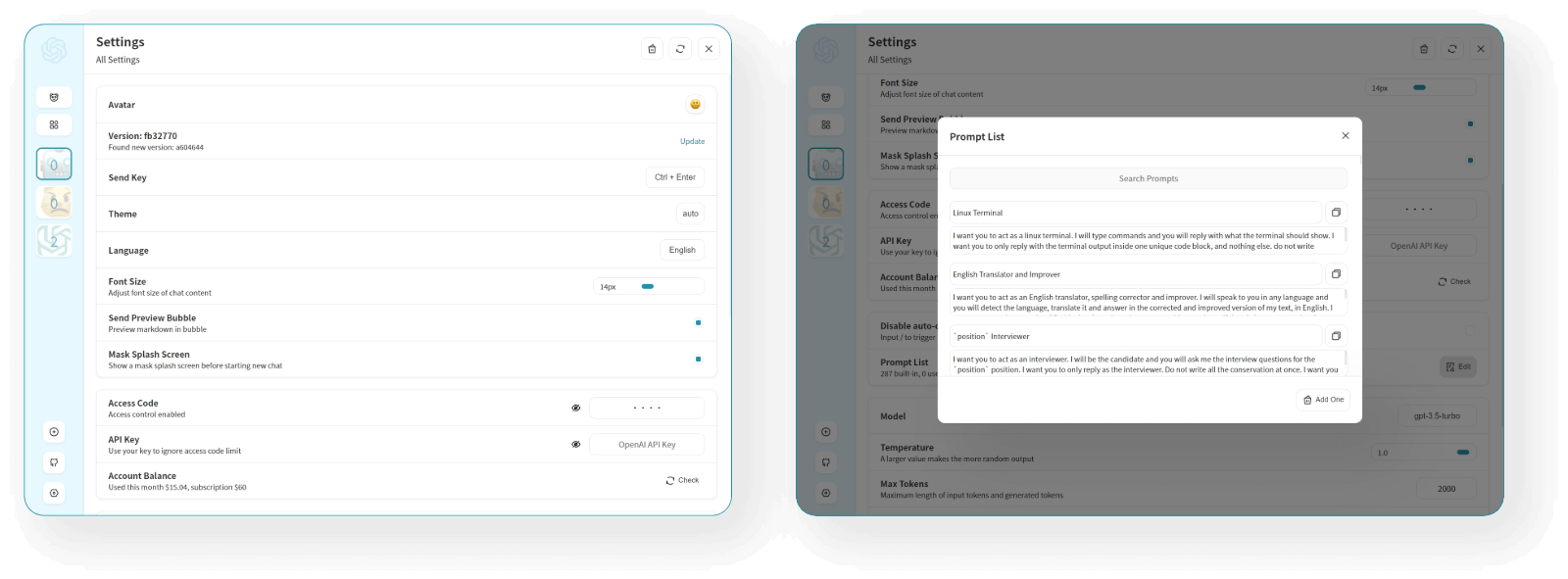
Step 3: Deploy with Docker Compose
For a more permanent setup, use this docker-compose.yml:
version: '3'
services:
  nextchat:
    image: yidadaa/chatgpt-next-web:latest
    restart: unless-stopped
    ports:
      - 8080:3000
    volumes:
      - ./data/nextchat:/data
    environment:
      - OPENAI_API_KEY=your-key-here
      - CODE=your-password
      - GOOGLE_API_KEY=your-gemini-key
Configuration Tips
Custom Models: Set CUSTOM_MODELS to define which models appear in the dropdown. For example: CUSTOM_MODELS=gpt-4o,gpt-4o-mini,claude-sonnet-4-20250514,gemini-2.5-pro.
Reverse Proxy: For production use, place NextChat behind Nginx or Caddy with HTTPS. It respects standard X-Forwarded-For headers.
Updates: Simply run docker pull yidadaa/chatgpt-next-web:latest and then restart the container to update.
Why Docker?
The Docker deployment keeps NextChat isolated, easy to update, and consistent across environments. No need to install Node.js, npm, or manage dependencies — Docker handles everything. Combined with the ability to switch between AI providers seamlessly, NextChat gives you a ChatGPT-grade experience with complete data sovereignty.
Conclusion
NextChat Docker deployment is the fastest way to get a production-quality AI chat interface on your own infrastructure. With multi-provider support, cross-platform desktop apps, and an active community, it is the smart choice for anyone who wants AI chat on their own terms.