How to Self-Host Happier with Docker Compose (Tutorial)
Step-by-step tutorial to deploy Happier with Docker Compose and connect Codex, Claude Code, OpenCode, or Qwen — all end-to-end encrypted.
In this hands-on tutorial, you will deploy Happier with Docker Compose and connect it to your favorite AI coding assistant. The whole setup takes about five minutes — and everything stays end-to-end encrypted.
🚀 Want to deploy Happier yourself?
Docker configs, system requirements, and installation guides — all on one page.
View Happier Tool Page →Prerequisites
You need a Linux server (2 vCPU / 4 GB RAM minimum, 4 vCPU / 8 GB recommended), Docker with Compose, and an account for at least one supported AI provider (Codex, Claude Code, OpenCode, Kimi, Augment Code, or Qwen).
Step 1 — Deploy with Docker Compose
services:
  happier:
    image: terrifiedbug/happier:latest
    restart: unless-stopped
    ports:
      - 8080:8080
    volumes:
      - ./data/happier:/data
Save this as docker-compose.yml and run docker compose up -d. The container listens on port 8080.
Step 2 — Connect Your AI Provider
- Open
http://your-server:8080in your browser. - Create your admin account — the encryption keys are generated locally on your device.
- Add a provider under Settings → Providers and paste your API key or token for Codex, Claude Code, OpenCode, Kimi, Augment Code, or Qwen.
Step 3 — Use It on Any Device
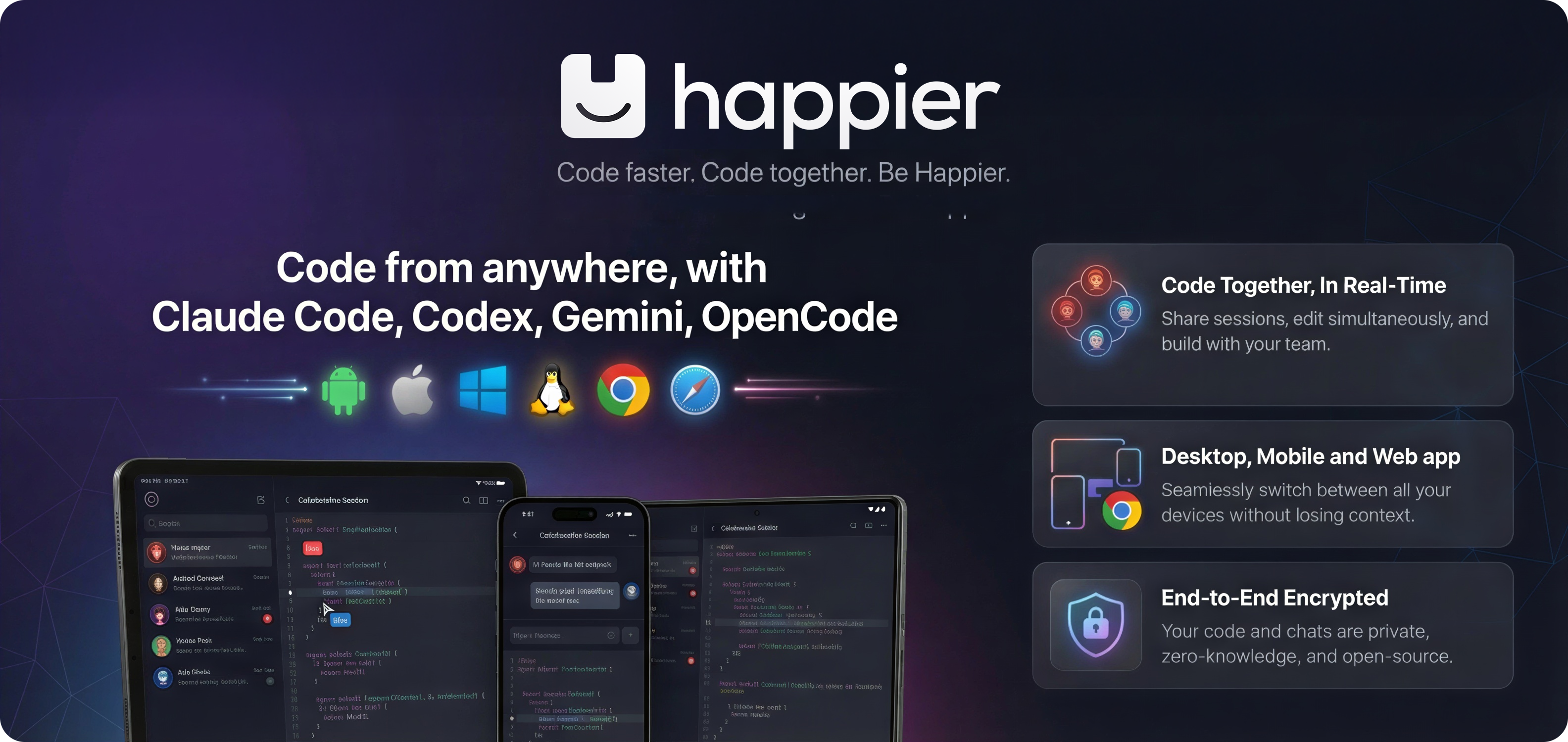
Happier runs on web, desktop, and mobile, so you can start a session on your laptop and continue it from your phone. Because conversations are encrypted end-to-end, switching devices doesn't mean exposing your data to the server.
Verification Checklist
| Check | Expected |
|---|---|
| Container running | docker ps shows happier healthy |
| Web UI | Port 8080 responds |
| Provider chat | A test prompt returns a reply |
Troubleshooting: if the UI is unreachable, check the firewall for port 8080. If the provider fails, re-check the API token permissions — Codex and Claude Code often need scoped tokens.
🚀 Want to deploy Happier yourself?
Docker configs, system requirements, and installation guides — all on one page.
View Happier Tool Page →