TaxHacker Tutorial — How to Set Up AI-Powered Bookkeeping in 15 Minutes
Step-by-step tutorial for deploying TaxHacker with Docker: receipt scanning, custom AI categories, multi-currency support, and local LLM integration for privacy.

🔧 Getting Started with TaxHacker — A Step-by-Step Guide
So you want to run your own AI-powered accounting server? Great choice. I'll walk you through the setup from zero to first receipt scan. You'll need Docker and about 15 minutes. Grab a coffee ☕
🚀 Want to deploy TaxHacker yourself?
Docker configs, system requirements, and installation guides — all on one page.
View TaxHacker Tool Page →📋 Prerequisites
- Docker and Docker Compose installed
- A server with at least 1GB RAM (2GB recommended)
- A domain or IP address to access the web UI
- (Optional) Ollama or another local LLM for fully offline use
🚀 Step 1: Set Up TaxHacker
Create a directory and a docker-compose.yml file. Here's the minimal setup:
version: '3.8'
services:
  app:
    image: ghcr.io/vas3k/taxhacker:latest
    ports:
      - "7331:7331"
    environment:
      - NODE_ENV=production
      - SELF_HOSTED_MODE=true
      - DATABASE_URL=postgresql://postgres:password@postgres:5432/taxhacker
      - BETTER_AUTH_SECRET=change-me-to-something-random
    volumes:
      - ./data:/app/data
    depends_on:
      - postgres

  postgres:
    image: postgres:16-alpine
    environment:
      - POSTGRES_USER=postgres
      - POSTGRES_PASSWORD=password
      - POSTGRES_DB=taxhacker
    volumes:
      - ./pgdata:/var/lib/postgresql/data

  cron:
    image: ghcr.io/vas3k/taxhacker:latest
    environment:
      - NODE_ENV=production
      - SELF_HOSTED_MODE=true
      - DATABASE_URL=postgresql://postgres:password@postgres:5432/taxhacker
      - BETTER_AUTH_SECRET=change-me-to-something-random
    volumes:
      - ./data:/app/data
      - ./etc/crontab:/mnt/crontab:ro
    depends_on:
      - postgres
      - app
Pro tip: Change BETTER_AUTH_SECRET to a long random string. I used openssl rand -hex 32 and it took 2 seconds. Don't skip this — the app won't start without it.
Also, create the cron config file:
mkdir -p etc
cat > etc/crontab << 'EOF'
0 2 * * * /app/scripts/process-inbox.sh
EOF
▶️ Step 2: Start Everything
docker compose up -dFirst pull takes about 30 seconds on a good connection. The GHCR image is ~200MB. If you see this in the logs — you're golden:
✔ Listened on http://0.0.0.0:7331Open http://your-server:7331 in your browser and create your admin account.
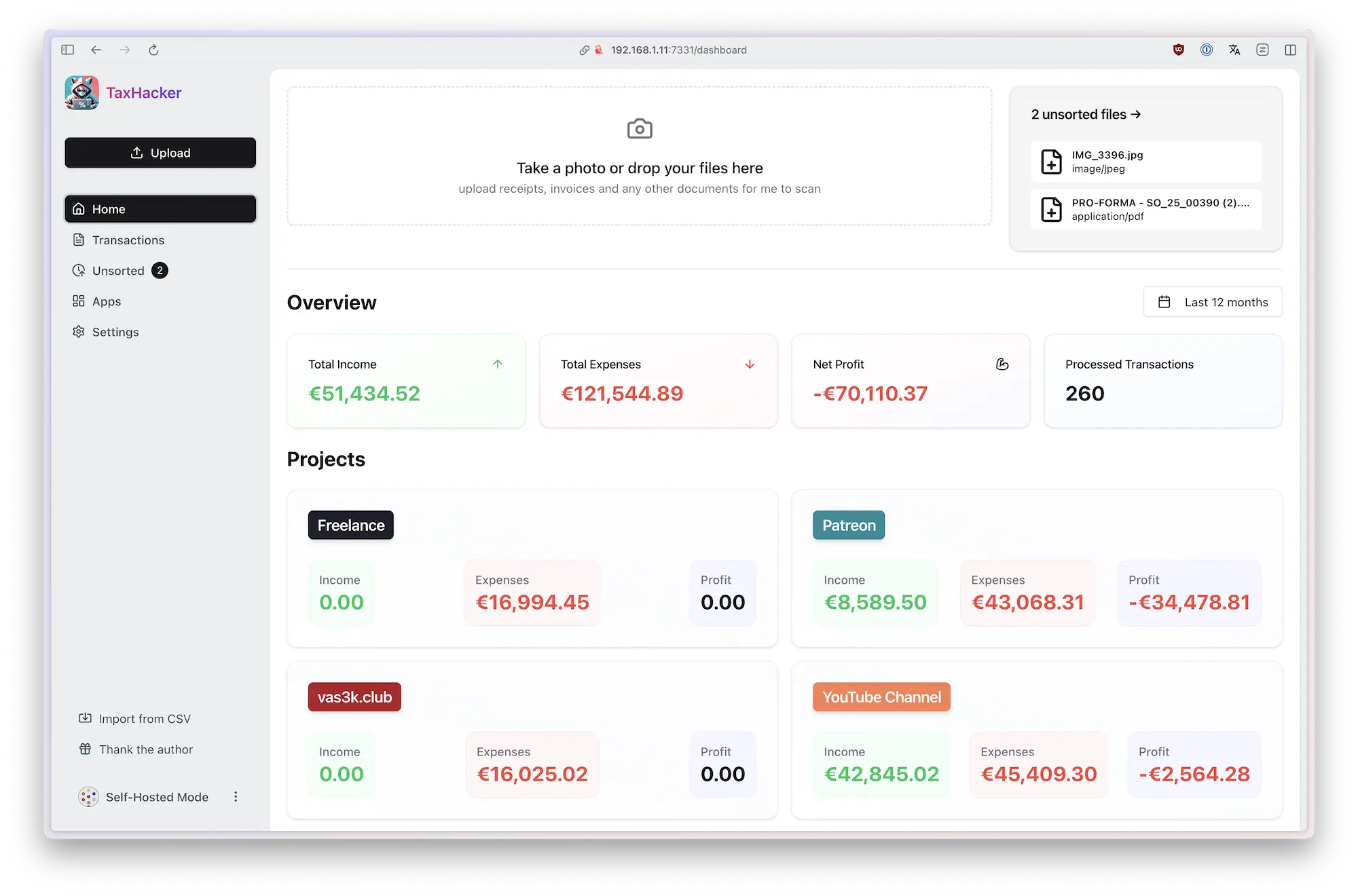
📸 Step 3: Scan Your First Receipt
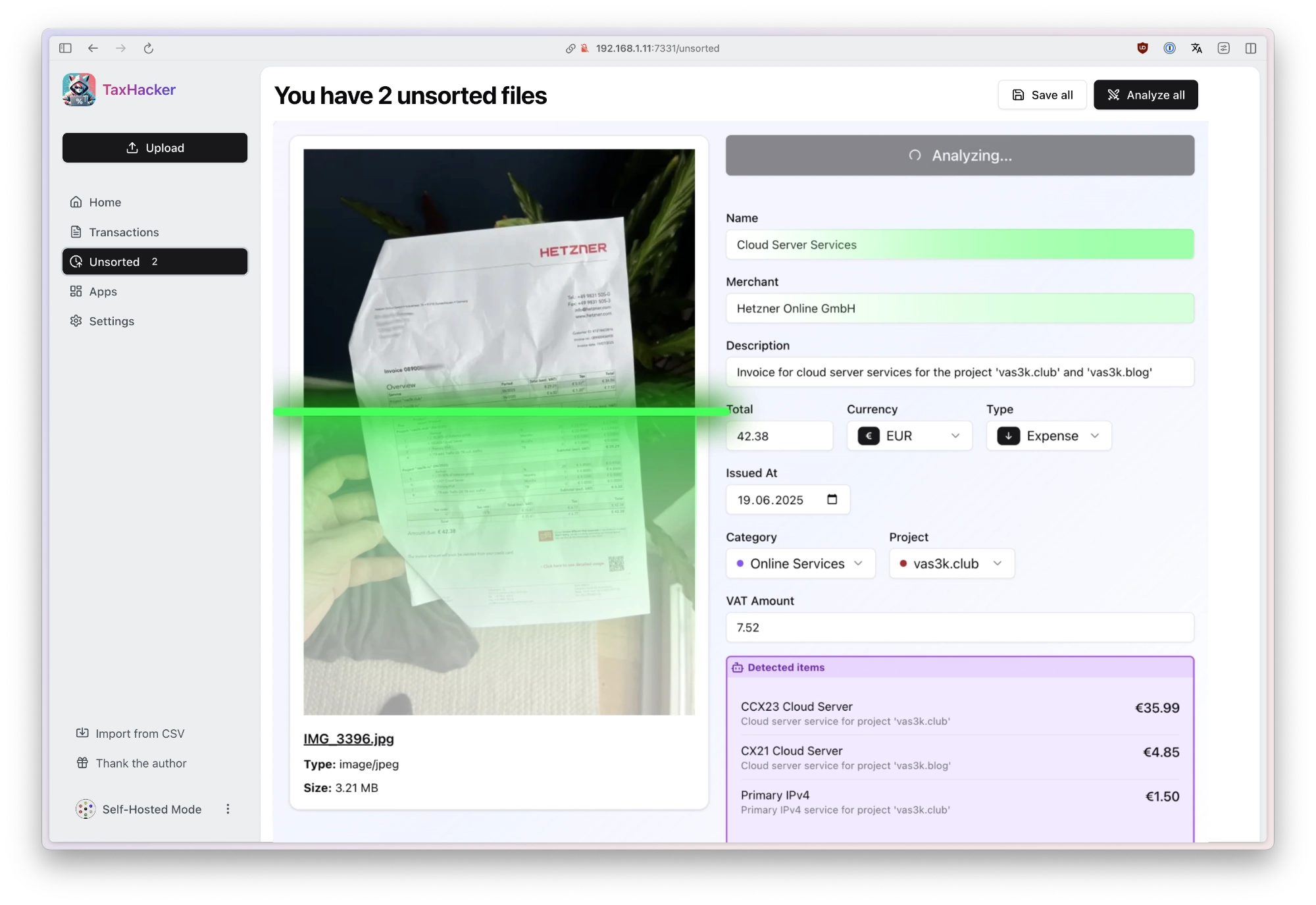
Click "Upload" and drop a receipt image. Within seconds, TaxHacker extracts:
- Vendor name → "Starbucks"
- Amount → "$5.75"
- Date → "2026-07-18"
- Category → "Food & Drinks" (or your custom category!)
⚙️ Step 4: Configure Custom Categories
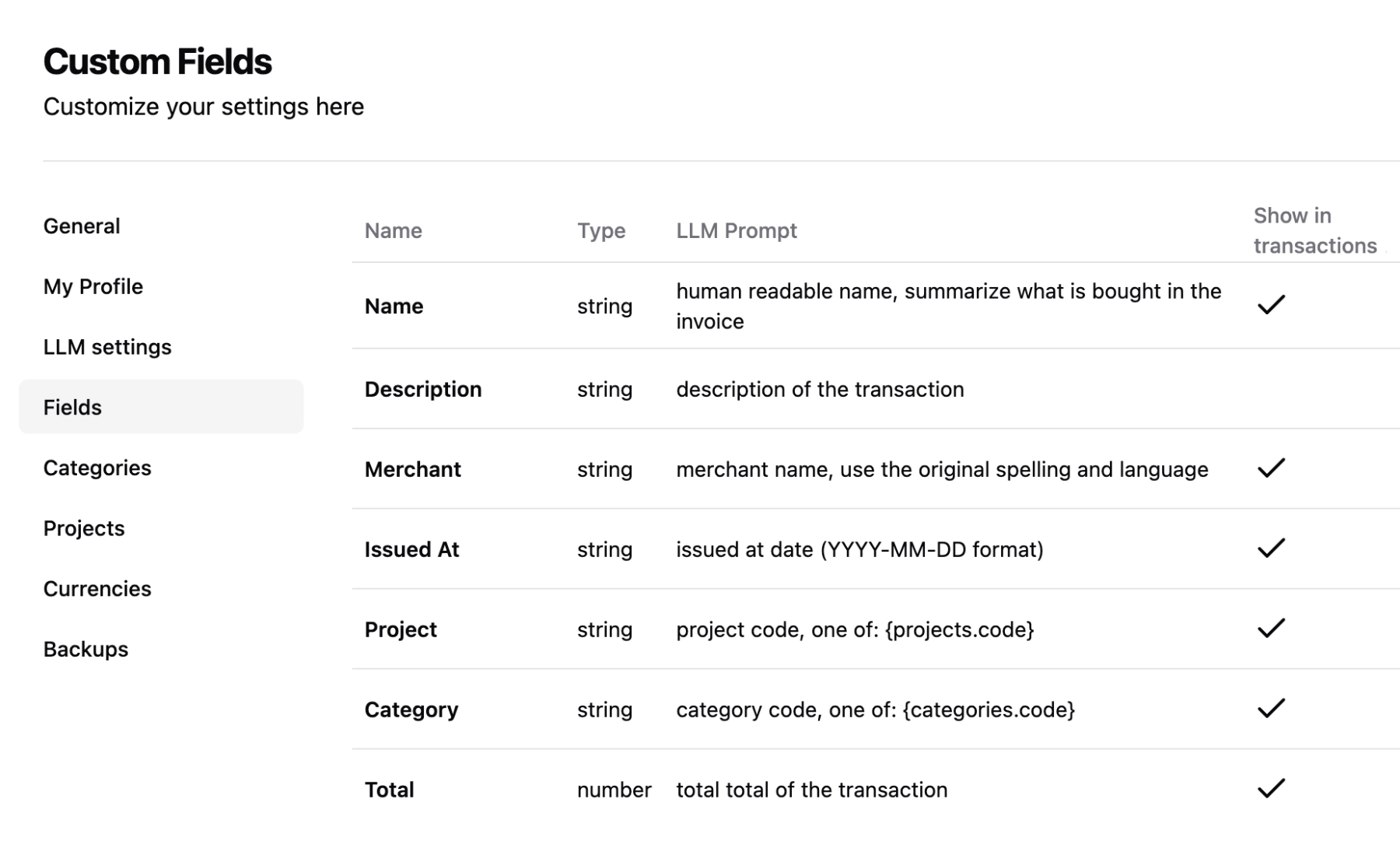
Go to Settings → Categories. Here you can write natural language rules like:
Any transaction from GitHub → "Software & Tools"
Receipts with "AWS" in the vendor → "Cloud Infrastructure"
Weekend meal receipts → "Personal" (not business)
Adobe subscriptions → "Software - Fixed Cost"
The AI applies these rules automatically to new transactions. If a rule conflicts, TaxHacker asks you once and remembers your decision.
🧠 Step 5: Connect a Local LLM (Optional)
If you want everything offline:
# Add to your docker-compose.yml
services:
  ollama:
    image: ollama/ollama:latest
    volumes:
      - ./ollama:/root/.ollama

# Then in TaxHacker settings, point to: http://ollama:11434
I tested this with Mistral 7B and it worked surprisingly well for receipt scanning. Slower than cloud LLMs (~3s vs ~1s per scan) but completely private.
🐛 Common Pitfalls (I Hit All of These)
| Issue | Fix |
|---|---|
| "Can't connect to database" | Make sure PostgreSQL starts before the app. Use depends_on in compose. |
| "BETTER_AUTH_SECRET is required" | Set a random secret. openssl rand -hex 32 is your friend. |
| Receipt scanning is slow | Default uses a remote LLM. Switch to a local model for faster (but less accurate) scans, or use OpenAI-compatible API. |
| Can't see uploaded files | Check volume mounts: ./data:/app/data must exist and be writable. |
✅ Verification
After setup, check that everything works:
docker compose ps
# All 3 services should be "Up"

curl -s http://localhost:7331 | head -5
# Should return HTML, not an error

# Check logs
docker compose logs app | tail -10
If you see the login page — congratulations, you're running your own AI accountant 🎉
🚀 Explore TaxHacker on Run This Ai
Docker Compose configs, system requirements, installation guides, and more — all in one place.
View TaxHacker Tool Page →