How to Set Up Meetily: Self-Hosted AI Meeting Notes with Local Transcription
Step-by-step guide to installing and configuring Meetily — the open-source, privacy-first meeting assistant with local transcription and AI summarization.
Getting Started with Meetily
Meetily brings professional-grade meeting transcription to your desktop without compromising privacy. This tutorial walks you through installation, configuration, and first use.
🚀 Want to deploy Meetily yourself?
Docker configs, system requirements, and installation guides — all on one page.
View Meetily Tool Page →Prerequisites
- macOS 13+ or Windows 10/11
- Ollama installed locally for summarization (optional but recommended)
- At least 8GB RAM (16GB recommended for larger meetings)
- A working microphone or audio input device
Installation
Option 1: Native Desktop App (Recommended)
- Download the latest release from the GitHub releases page
- Install the package for your platform (.dmg for macOS, .exe for Windows)
- Launch Meetily from your Applications folder
- Grant microphone permission when prompted
Option 2: Docker Deployment
docker run -d --name meetily \
  -p 8080:8080 \
  -v ./meetily-data:/data \
  mjwalf66/meetily-backend:latest
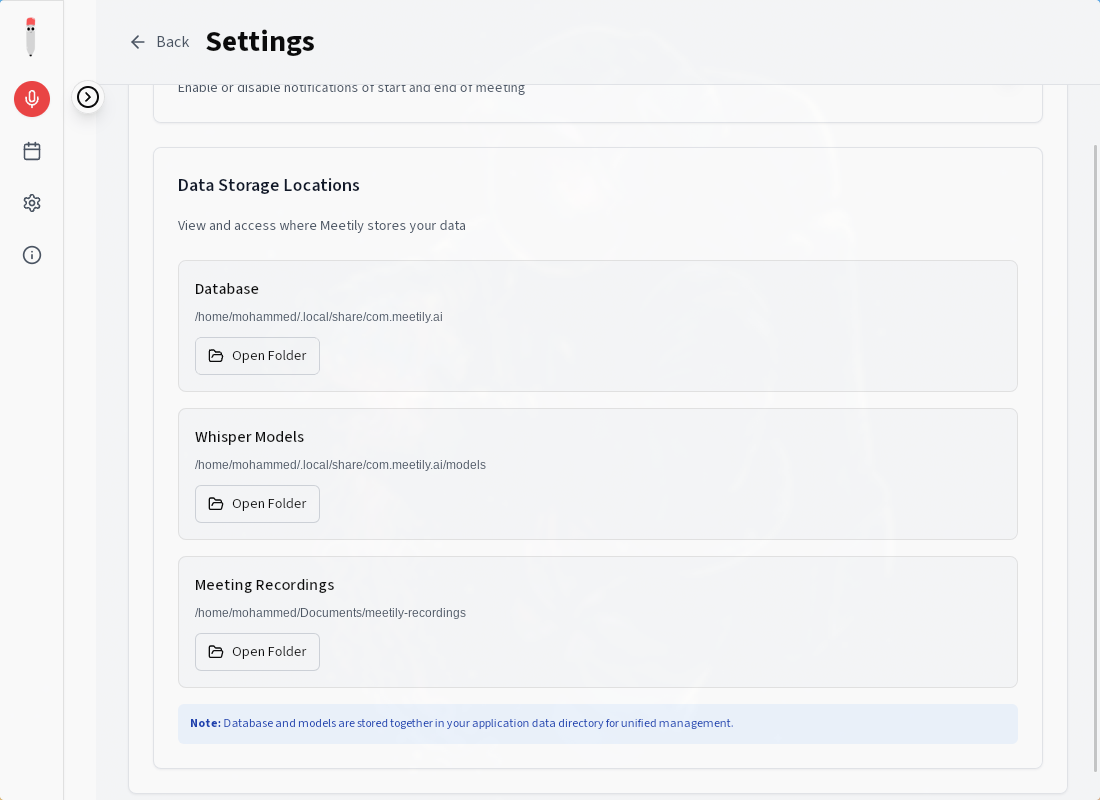
Configuration
Setting Up Ollama for Summarization
- Install Ollama from ollama.ai
- Pull a model:
ollama pull llama3.2(or your preferred model) - In Meetily settings, point to your Ollama endpoint (default:
http://localhost:11434) - Select the model you pulled for summarization
Choosing a Transcription Engine
Meetily supports two transcription engines:
| Parakeet | 4x faster, optimized for real-time use, lower resource usage | Best for daily meetings |
| Whisper | Higher accuracy, better with accented speech, more languages | Best for critical recordings |
Your First Meeting
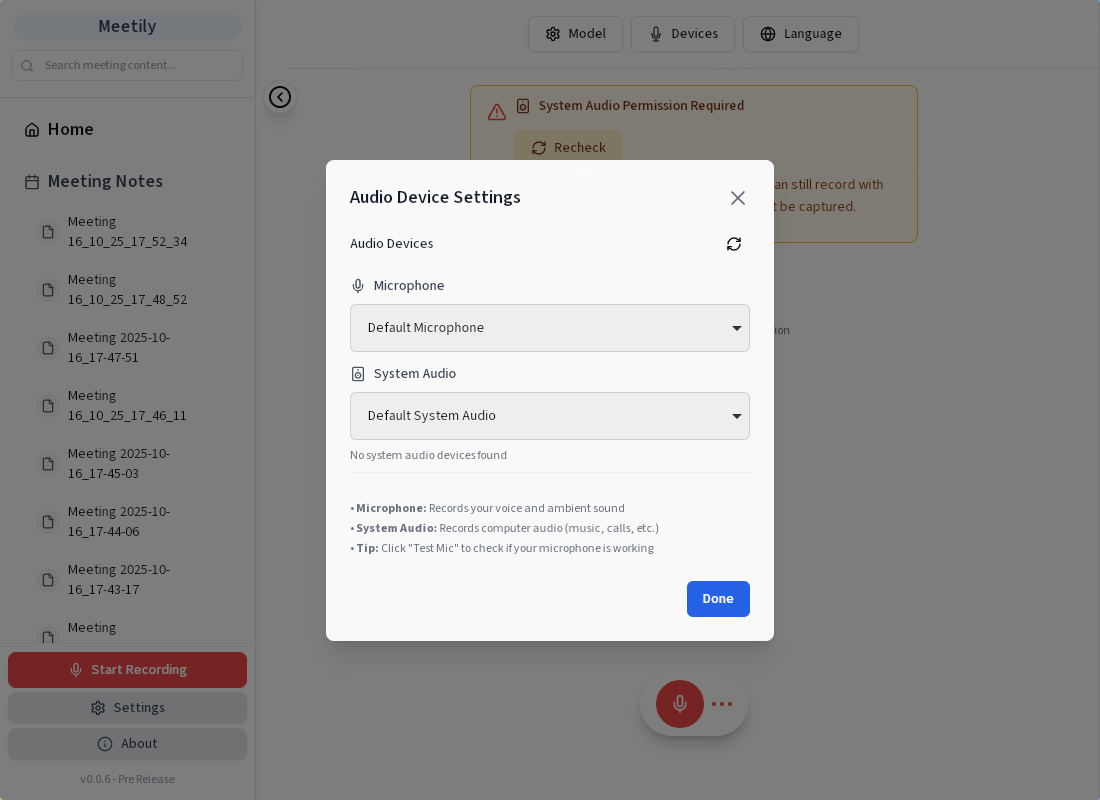
- Open Meetily and select your audio input device
- Click Start Recording — transcription begins in real-time
- Meetily automatically detects speakers and assigns labels
- During the meeting, you can add notes at specific timestamps
- When finished, click Stop and review the full transcript
- Use Generate Summary to create concise meeting minutes via Ollama
Advanced Tips
- Custom Model Selection — Experiment with different Ollama models for better summarization quality
- Export Options — Export transcripts as TXT, Markdown, or structured meeting minutes
- Keyboard Shortcuts — Learn the shortcuts for faster workflow (check Settings panel)
- Batch Processing — Import recorded audio files for post-meeting transcription
🚀 Start your privacy-first meeting transcription journey
Full Docker setup, system specs, and deployment guides available.
View Meetily Tool Page →
#meetily
#tutorial
#setup
#docker
#local-ai
#meeting-notes
#whisper
#ollama